Order Statuses: Standard and Custom
How to configure custom order statuses, colors, and order to fit your team's process.
Statuses are the foundation of order management. In addition to the standard set, you can create custom statuses to match your process.
Where to find it
Orders & Sales module → Order Statuses (path …/erp/order-statuses).
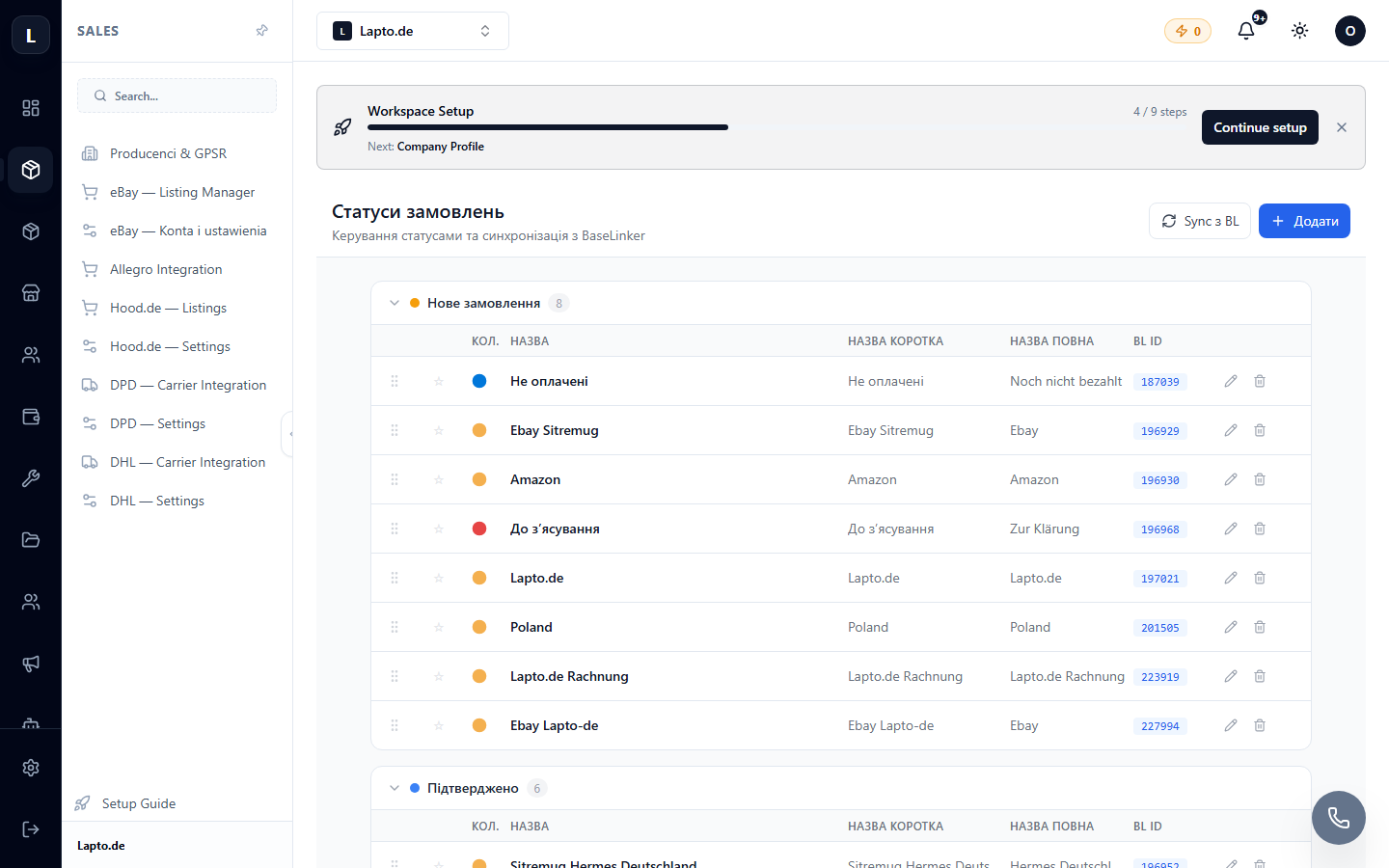
Creating a status
- Click Add status.
- Enter a name (e.g., "Awaiting assembly"), color for the label, and order in the list.
- Save it — the status will be immediately available in the order card.
Tips for building your process
- Keep the number of statuses small (5–8): the simpler the scheme, the less confusion.
- Color = meaning: green for completed, red for problematic.
- Statuses work in conjunction with automation: a status change can trigger a scenario — for example, sending an SMS to the client.