Store Fit-out Estimate: One Document for the Entire Project
How to estimate the fit-out of an entire store: zones, items with quantities, common batches for identical products, total expenses, margin, approval with price freezing, scenarios, and client proposal.
An order for a store fit-out isn't just one product, but a hundred: shelves in the sales area, a counter at the checkout, hangers in fitting rooms, displays in the window. The same shelf might be in three zones, with a different quantity in each.
Calculating this in a spreadsheet is time-consuming and risky. The Store Fit-out Estimate gathers everything into one document, where every sum has a clear origin and nothing gets lost.
Where to Find It
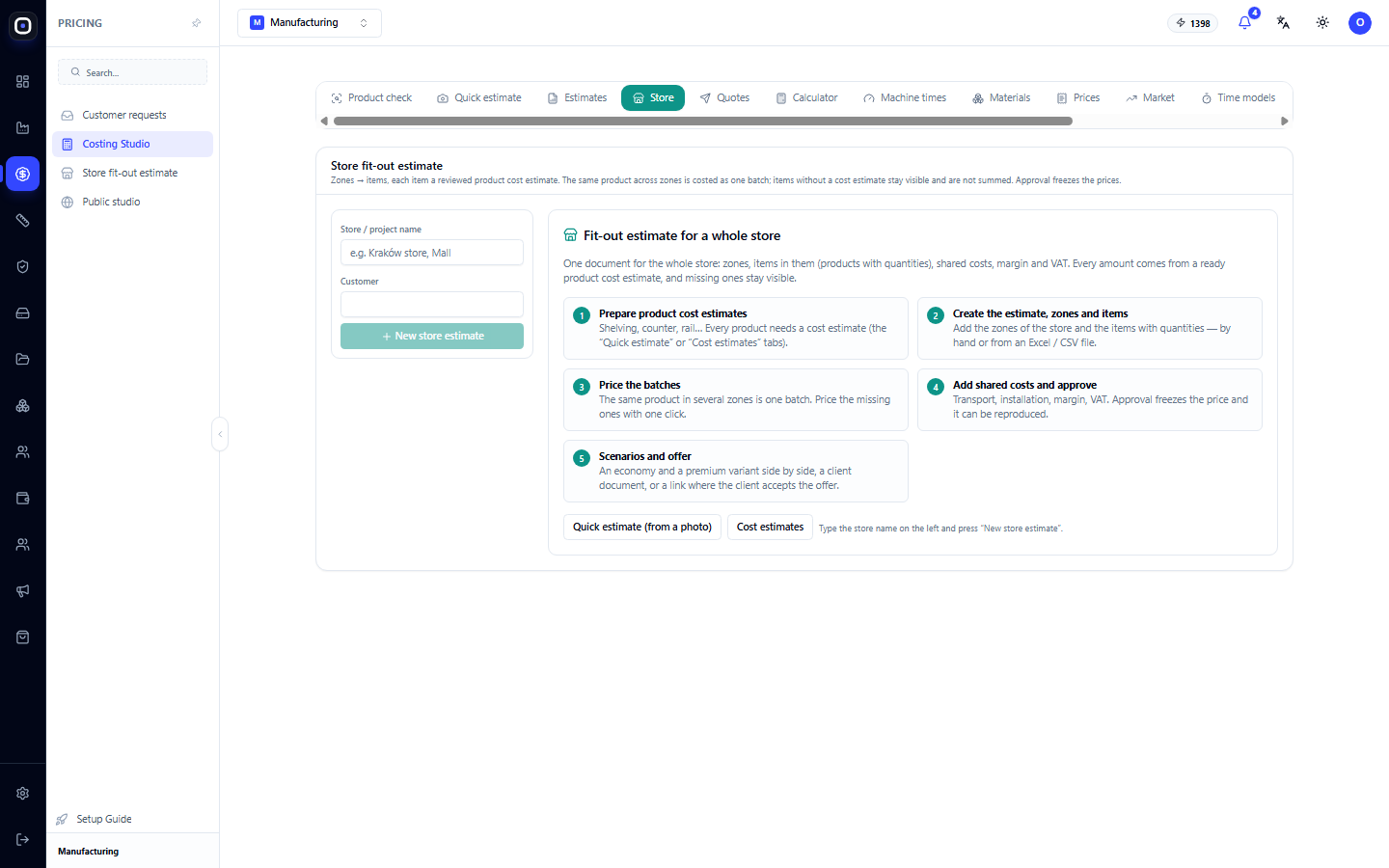
Open Costing Studio and click the Store section in the section bar. The address ends with …/erp/pricing/costing?tab=store.
The Main Idea in Four Sentences
Under the section heading, it describes how it's structured. These four rules are worth understanding before you start.
- Zones → items. The store is divided into zones, and each zone has items: products with quantities.
- Each item is a verified product calculation. The price is not entered manually but taken from a ready-made calculation.
- Identical products from different zones are counted as one batch. Twenty shelves in the hall and ten in the warehouse make a batch of thirty, and the price per unit will be lower than for two separate batches.
- Items without a calculation are visible and are not included in the total. The system does not invent prices or hide gaps.
There's also a fifth rule: approval freezes prices. After approval, the estimate will not change, even if metal prices increase tomorrow.
Five Steps
The section itself shows the workflow in five numbered cards.
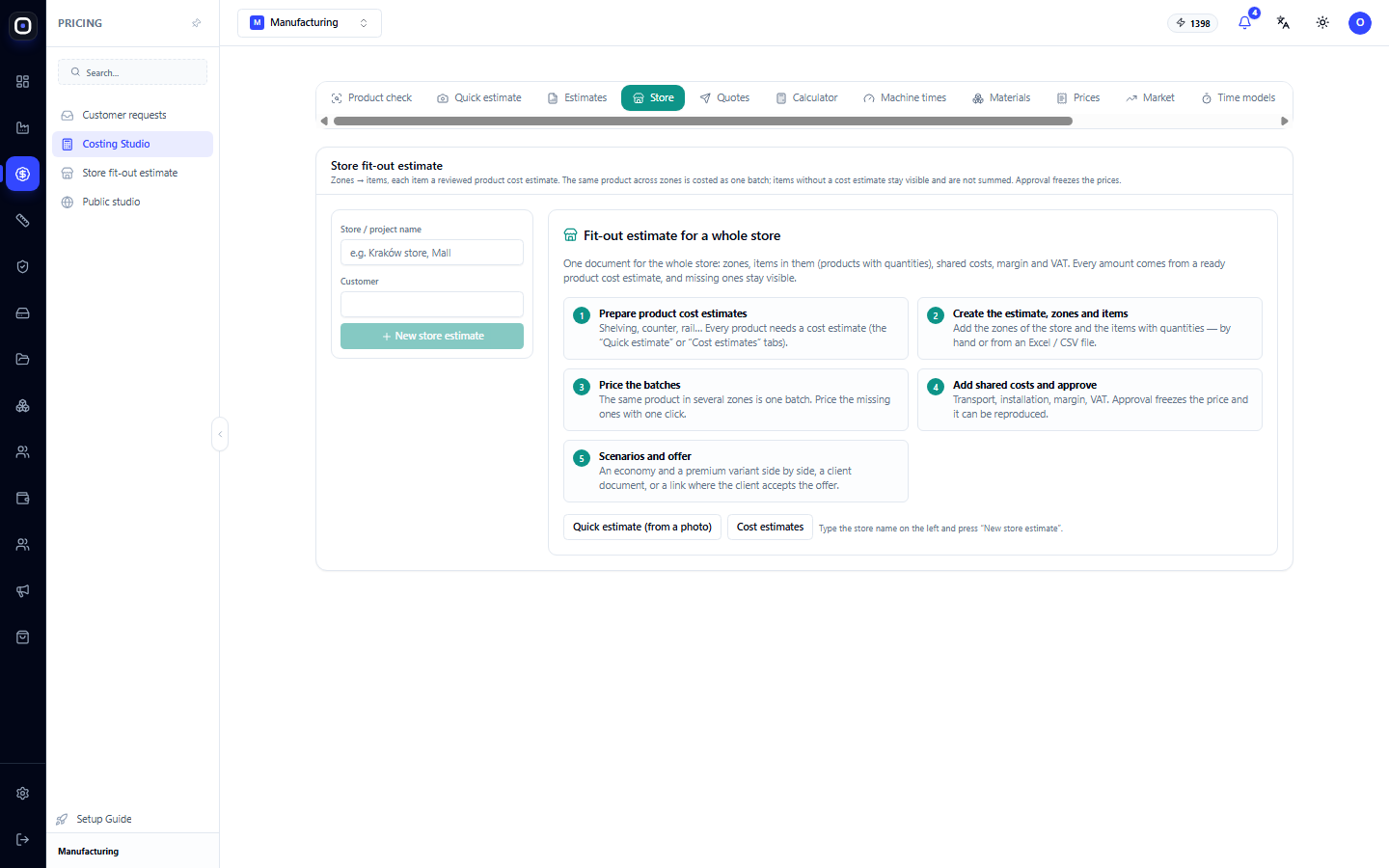
Step 1. Prepare product calculations
Shelf, counter, hanger. Every product that will be included in the estimate must have its own calculation.
You can do this in two ways, and buttons for both are on this page:
- Quick Estimate (with photo) — if you only have a photo or sketch;
- Calculations — if you have a model or precise description.
It's not necessary to have all calculations ready beforehand. You can create the estimate and then calculate the missing ones.
Step 2. Create the estimate, zones, and items
Fill in the store or project name (e.g., "Krakow Store, Shopping Center") and the client, then click New Store Estimate.
Next, add zones: sales floor, checkout, fitting rooms, display window, warehouse. In each zone, add items with quantities.
Items can be entered in two ways:
- manually, one by one;
- from an Excel or CSV file. If the client sent a list in a table, you don't need to retype it.
Zones are not just for order. Clients often ask: "How much does just the checkout cost?" With zones, the answer is ready.
Step 3. Calculate batches
The system collects identical products from all zones and counts them as a single batch. This accurately reflects production: a machine is set up once for the entire quantity.
If some items still lack calculations, they are marked separately. You can calculate them with one click directly from here.
As long as at least one item is without a price, the total amount is incomplete, and the system clearly shows this.
Step 4. Add general expenses and approve
There are expenses that apply to the entire project, not just individual products:
- transport;
- installation;
- margin;
- tax.
These are added at the estimate level.
When everything is ready, the estimate is approved. From this moment, prices are frozen: the estimate retains all numbers as they were, and it can always be reproduced.
Why freeze prices? Months can pass between the estimate and the start of work. If the price of sheet metal changes during this time, and the estimate "floats" with it, you won't be able to explain to the client why the amount is different.
Step 5. Scenarios and proposal
Clients almost always ask: "What if it's cheaper?" or "What if it's better?".
An estimate can be branched into scenarios. For example, an economy version with simpler materials and a premium version with more expensive ones. They are shown side-by-side, making the differences clear.
From the selected scenario, a document for the client – a proposal – is generated. The client receives it and makes a decision.
Versions
The estimate has versions. Did the client ask to remove the display window and add another checkout? A new version is created, and the previous one remains.
Two versions can be compared: what was added, what was removed, how the total changed.
This way, you always have an answer to the question "what was in the first version?".
Recalculation
If material prices have been updated and the estimate has not yet been approved, it can be recalculated at the new prices. An approved estimate is not recalculated: this is precisely why it is frozen. To update prices in an approved estimate, create a new version.
How This Connects to the Rest
- Costing Studio provides prices, rates, and time models from which each calculation is derived.
- Client Requests — the proposal goes here, and you can see if the client has opened it.
- Production Orders are created from an approved estimate when the client says "yes."
Typical Workflow
- Receive a list of equipment by zone from the client.
- Create an estimate with the project name and client.
- Import the list from a file or enter it manually.
- Calculate any missing calculations.
- Verify that no item remains without a price.
- Add transport, installation, margin, and tax.
- If necessary, create economy and premium scenarios.
- Approve the estimate.
- Generate and send the proposal.
Frequently Asked Questions
The total amount is less than I expected
Check if there are any items without a calculation. They are not included in the total and are shown separately.
Why does the same shelf in two zones have the same price per unit?
Because it's counted as one batch for the entire quantity. This is more cost-effective than counting zones separately.
The client changed the list after approval
Create a new version of the estimate. The approved one will remain in history.
Material prices changed, but the estimate didn't
It's approved, and approval freezes prices. A new version is needed for new prices.
Can I upload a list from the client's spreadsheet?
Yes, from an Excel or CSV file. After import, verify that all items are mapped to your products.