Customer Requests: From First Contact to Production Launch
Sales manager's workspace: all requests on one screen, seven stages, estimation, proposal with a link for the client, tracking whether the client opened it, and transfer to production.
A client sends a photo, drawing, or just a description and waits for a price. Whether the order will be placed depends on how quickly and accurately you respond.
The Customer Requests page is the sales manager's workspace. It shows all inquiries, their current stage, and what needs to be done next. A request goes through its entire journey here: from the first email to production launch.
Where to find the page
In the sidebar menu, open the Pricing section and select Customer Requests. The page address ends with …/erp/sales/requests.
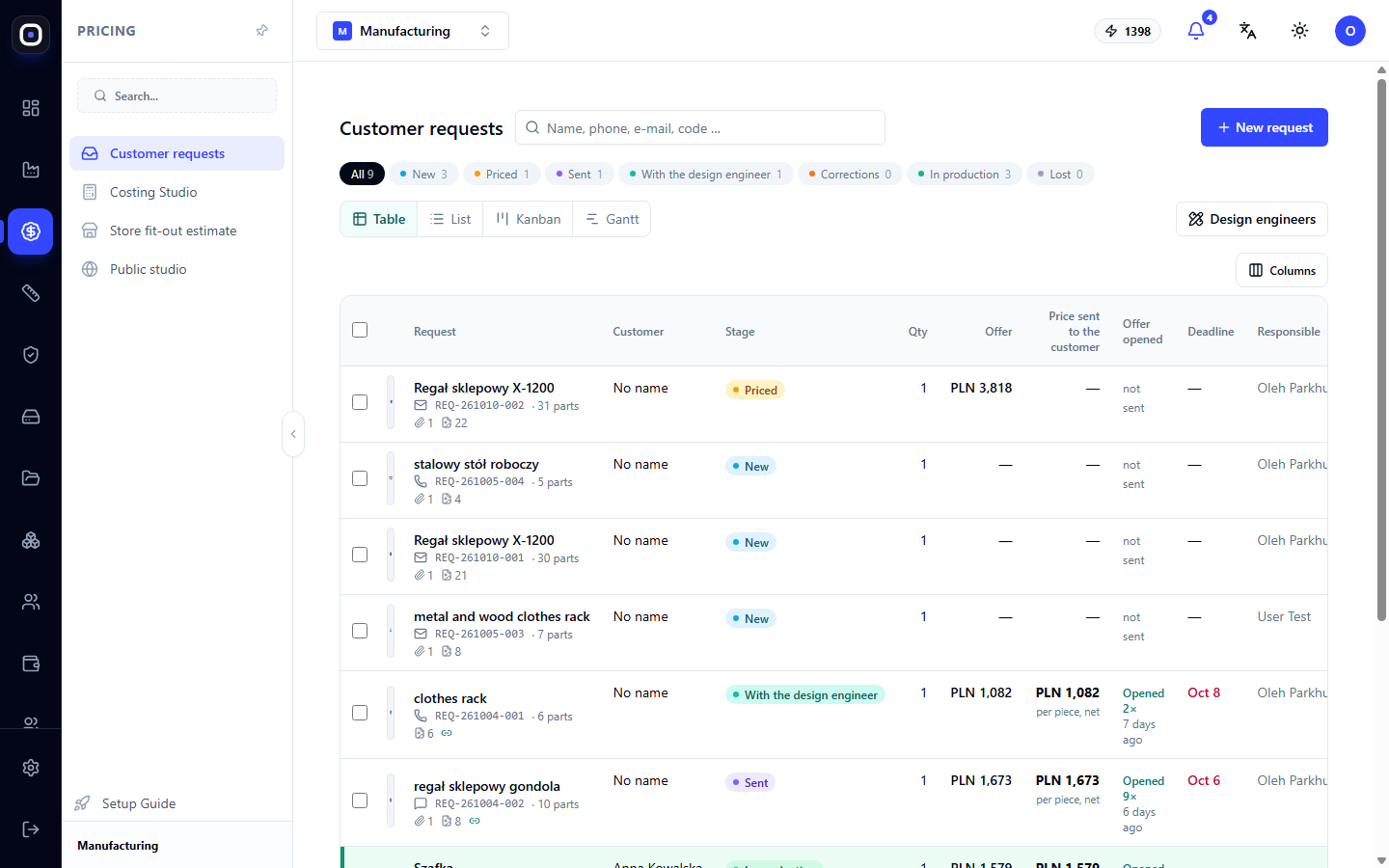
Seven Stages
Below the title, there is a row of buttons representing stages with the number of requests in each. Clicking on a stage filters the screen to show only requests for that stage, while the All button removes the filter.
- New — The request has just arrived; no one has worked on it yet.
- Estimated — The cost and price have been calculated, but nothing has been sent to the client yet.
- Sent — The proposal has been sent; awaiting a response.
- To Designer — Designer work is needed: clarify the model, dimensions, or materials.
- Revisions — The client asked for changes.
- In Production — The client agreed; the order has been transferred to the workshop.
- Lost — The client declined.
The numbers in this row provide a quick overview of sales status. Many requests in "New" means you're not keeping up with responses. Many in "Sent" and few in "In Production" means proposals are not convincing.
Search and Views
The search field searches by name, phone, email, or request code.
The view switcher offers five options:
- Table — All data in rows, the most compact view;
- List — Card-based, convenient for mobile;
- Kanban — Columns by stage, shows where bottlenecks are;
- Gantt — Requests on a timeline with deadlines;
- Designers — Who among the designers is busy with what.
The Columns button allows you to choose which columns to display in the table.
Requests Table
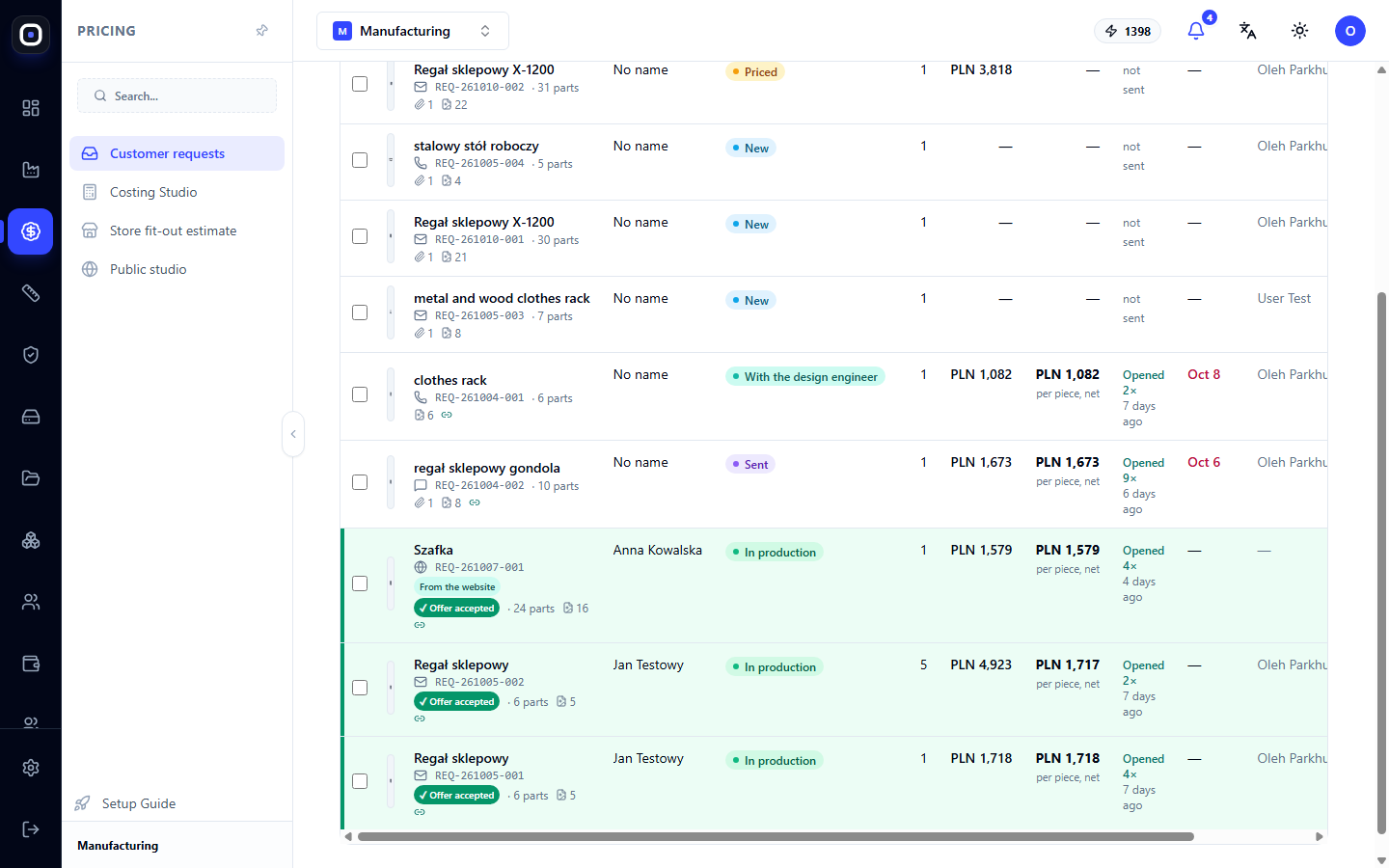
Each row is one request. Columns:
- Request — Product name, request code (e.g., REQ-261005-004), and the number of parts in it.
- Client — Who made the inquiry. "No name" means the contact has not yet been filled in.
- Stage — One of the seven stages.
- Qty — How many items are needed.
- Proposal — Calculated price.
- Price sent to client — What the client saw, per piece, excluding tax.
- Offer opened — Whether the client opened the proposal and how many times.
- Deadline — By what date a response or product is needed.
- Responsible — Who is handling the request.
- Updated — When something was last changed.
Two Price Columns
The calculated price and the price sent to the client are intentionally separated. The first is your internal calculation. The second is what you decided to offer. There might be a discount, rounding, or a manager's decision between them.
"Offer opened" Column
The proposal is sent to the client via a link. The system tracks when the client opened it and displays this in the table, for example, "Opened 2×".
This is a useful hint for the manager. The client opened the proposal twice and is silent? It's time to call. Didn't open it at all? Perhaps the email went to spam.
How to Create a Request
Click New Request in the top right corner. A request can start with whatever is available: a photo, sketch, verbal description, model file, or drawing.
The system then helps guide you through the process:
- A preliminary design and parts list are created from the photo or description;
- The cost is calculated based on your materials, norms, and rates;
- A proposal is generated;
- The client receives a link where they can see the product, price, and respond.
Requests also come in automatically: from the public studio on your website, where the client designs the product themselves.
What the Client Sees
Through the link, the client opens the proposal page: an image or 3D model of the product, price, options, and terms. They can agree, request revisions, or ask questions. Their response returns to your request and changes its stage.
If the client requests revisions, the request moves to the "Revisions" stage, and if designer work is needed, it moves to "To Designer".
Transfer to Production
When the client agrees, the request is transferred to production. A draft production order is created from it with the same design the client saw.
This eliminates the most dangerous gap: between what was sold and what began to be made. The workshop receives exactly the model and quantity that were agreed upon.
Typical Workflow for a Manager
- In the morning, open Customer Requests and click the New stage.
- For each new request, make an estimate.
- Check the price, adjust if necessary, and send the proposal.
- Review the Sent stage: who opened the proposal and who didn't.
- Call those who opened it and are silent.
- Process the Revisions stage.
- Transfer agreed requests to production.
Frequently Asked Questions
The "Client" column says "No name"
The client's contact information has not been filled in. Open the request and add a name, phone number, or email address.
The price in the "Proposal" column is empty
The request has not yet been estimated. Make an estimate, and the price will appear.
Why does "Offer opened" show "not sent"?
The proposal has not yet been sent to the client. The "opened" mark only appears after sending.
Can a request be returned from the "Lost" stage?
Yes. If the client changes their mind, the request can be put back into work.
How does a request differ from a production order?
A request is about sales: what the client wants and for how much. A production order is about execution: what and when the workshop does. An order appears from a request after approval.