Baselinker Integration
Connecting Baselinker: where to get the token and webhook password, what synchronization modes mean, and how to set up automatic service request creation.
If part of your processes already live in Baselinker, integration allows you not to choose "either-or": the systems exchange products, orders, and statuses.
Where to find it
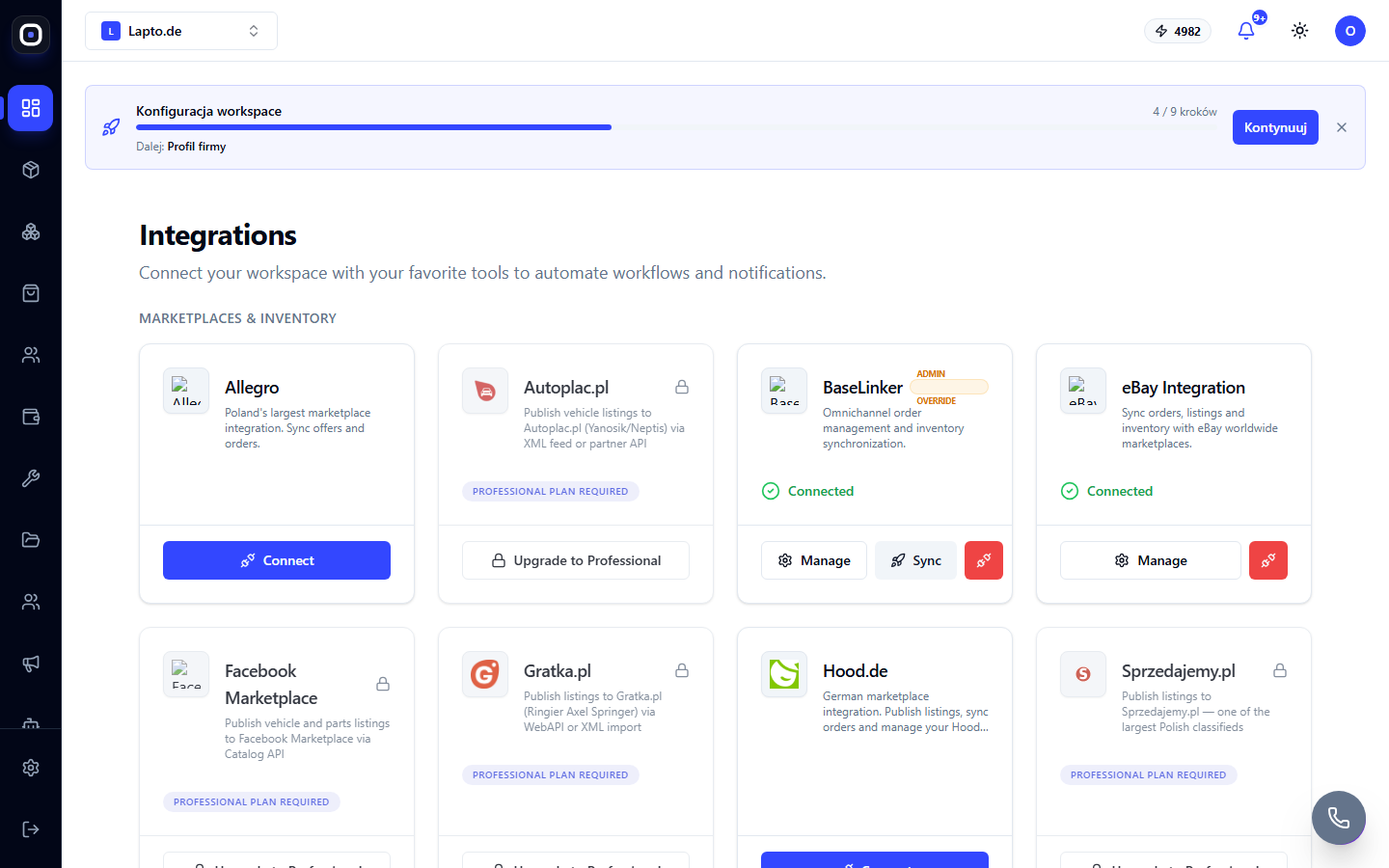
Storefront module → Integrations (path …/integrations), Baselinker card in the Marketplaces & Inventory group.
What to enter in the form
The settings window contains a brief instruction directly above the fields. You will need:
- API Token — in Baselinker: Account settings → API, copy the token.
- Webhook Password (bl_pass) — a custom password that you create yourself in Baselinker (Account settings → API → Webhooks) and enter the same string here.
- Inventory ID — the ID of the product catalog (inventory) in Baselinker to synchronize with (visible in the list of catalogs or in the address bar).
Sync Strategy — who is in charge
- Mode A: ERP as Master (Push stock) — Oprela is the source of truth for products and stock, data flows from Oprela to Baselinker.
- Mode B: BaseLinker as Master (Showcase) — conversely, the catalog and orders are managed in Baselinker, and Oprela displays them. Choose this mode if sales and marketplaces are already configured in Baselinker.
Service Keywords and service requests
The Service Keywords field accepts a comma-separated list of keywords or SKU prefixes (e.g., REP-, Service). If Enable Service Sync is turned on, items whose SKU or name matches one of the keywords will automatically create a request in the repair module (Repair Job) instead of a regular product order.
Synchronizing historical orders
After connecting, a Sync button will appear on the integration card — it initiates the import of historical orders, customers, and financial data for the selected period (30 days / 6 months / year / 2 years).