3D Import: How to Get a Specification for Production from a STEP Model
You upload a model from the designer, and the system breaks it down into assemblies and parts, counts quantities, and prepares a draft specification. Import stages, quick problem filters, and pre-release checks.
The designer sends a model. It contains everything: every part, every bolt, every pipe. But this is geometry, not a list of tasks. Someone has to break it down into items, count quantities, and decide what the factory makes itself and what it buys.
The 3D Import page automates most of this work. Below the heading, the entire path is shown in one line: external CAD system → product structure → automatic specification → production.
Where to find the page
In the side menu, open the Engineering section and select 3D Import. The page address ends with …/erp/engineering/3d-intake. The Import / review design button on the production orders page also leads here.
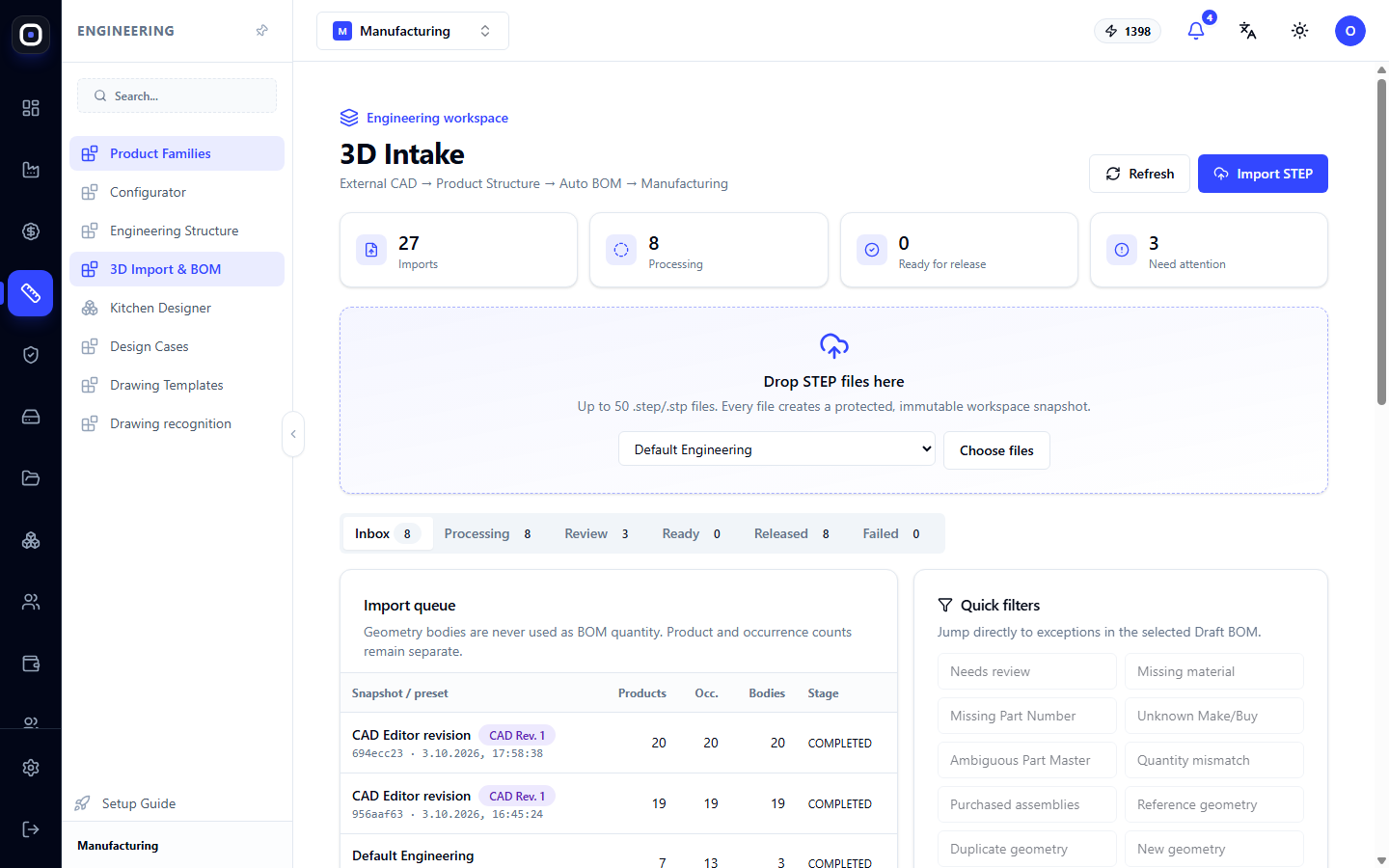
Some labels on this page are currently displayed in English. In the article, they are presented as you see them on the screen.
Four counters
- Imports — how many models have been uploaded in total.
- Processing — how many are currently being parsed.
- Ready to release — how many have been checked and can be sent to production.
- Needs attention — how many are waiting for human decision.
The last number is your to-do list on this page.
How to upload a model
In the middle of the page, there is a field with the text "Drag STEP files here". Drag files from your computer or click Select files. The Import STEP button at the top does the same.
You can upload up to fifty files with the .step or .stp extension at a time.
Immutable snapshot
Below the field, an important note is written: each file creates a protected immutable snapshot. This means that the uploaded model cannot be changed by anyone. If the designer sends a corrected version, it will be a new snapshot, and the old one will remain.
Therefore, it is always known exactly which version of the model an order was based on.
Set of rules
Before uploading, select a set of rules from the list that the system will use to parse the model:
- Default Engineering — general;
- Purchased Assemblies — purchased assemblies that do not need to be broken down into parts;
- Fabricated Steel — welded metal structures;
- Sheet Metal — sheet metal;
- Tube Fabrication — tube and profile products;
- Furniture — furniture.
The set tells the system what to expect. For a tubular product, it will look for profiles and lengths; for furniture, it will look for panels and edges.
Six stages
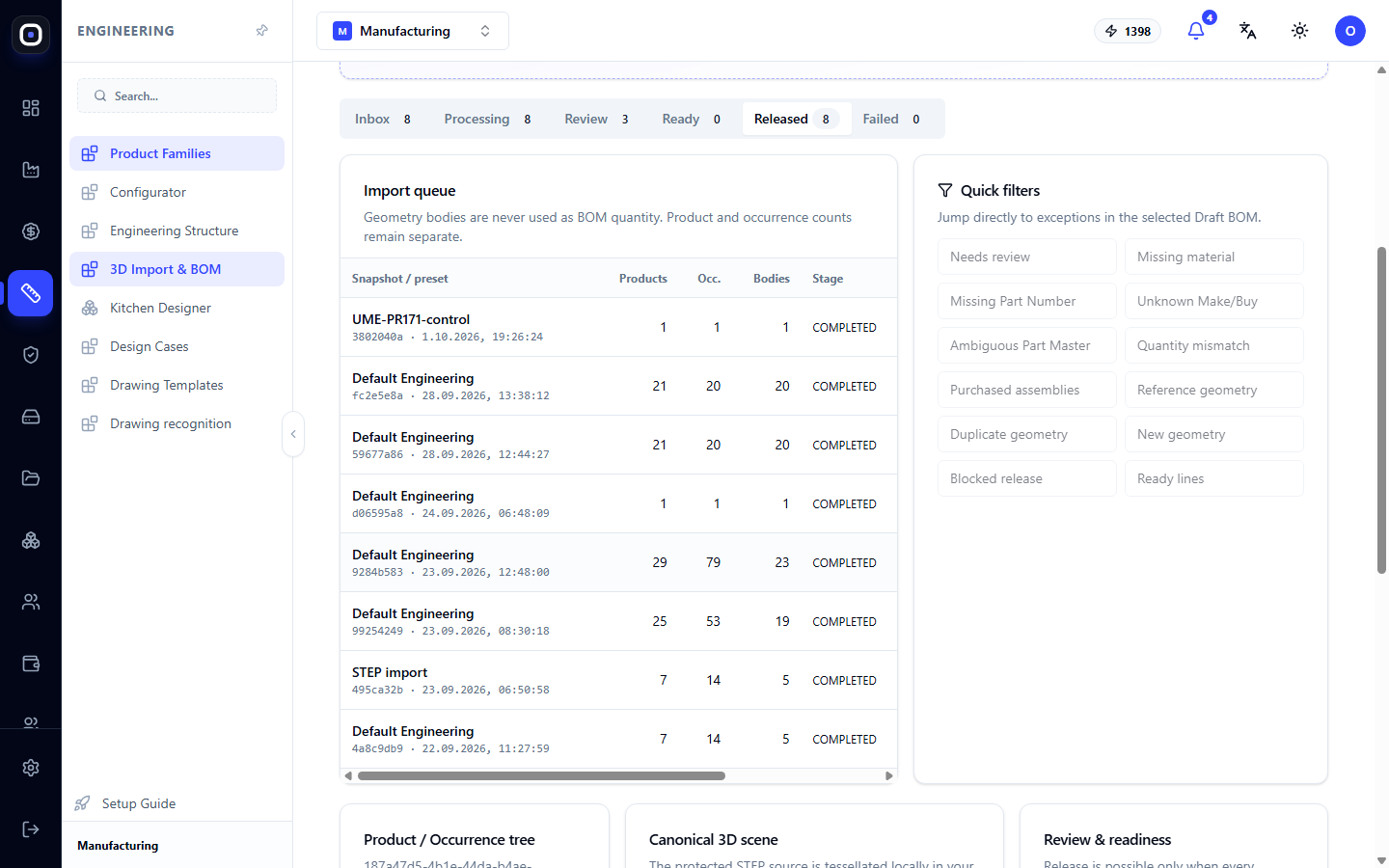
Below the upload field is a row of tabs with stages. The number next to each indicates how many imports are in that stage.
- Incoming — newly uploaded.
- Processing — the system is parsing the geometry.
- Review — parsing is complete, human review is needed.
- Ready — reviewed, can be released.
- Released — sent to production.
- Error — parsing failed.
The normal flow is from left to right. An import that is stuck in "Review" for a long time is waiting for you.
Import queue
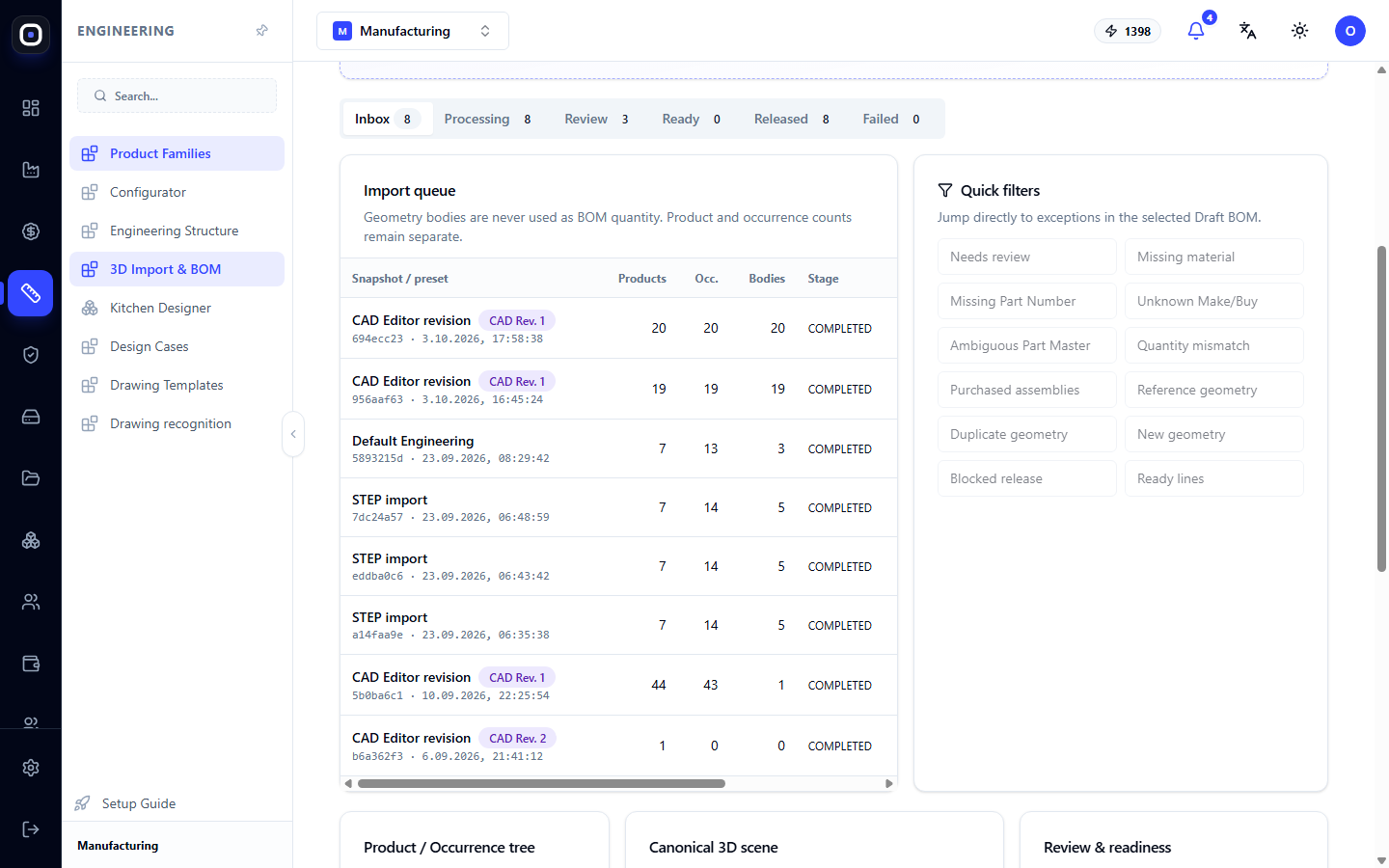
The table shows the imports for the selected stage. Columns:
- Snapshot name, rule set, date;
- Products — how many different products and parts were found;
- Occ. — how many times they appear in the model;
- Bodies — how many geometric bodies;
- Stage — parsing stage;
- BOM — bill of materials status.
Above the table, there is an explanation worth remembering: geometric bodies are never used as quantities in the specification. The quantity is counted by the occurrences of the part in the model. If the same leg appears four times in the model, the specification will have one item with a quantity of four, not four different parts.
Quick problem filters
To the right of the table is the Quick filters block. Each button shows only rows with a specific problem:
- Needs review — needs review;
- Missing material — material not specified;
- Missing Part Number — no part number;
- Unknown Make/Buy — not decided whether to make or buy;
- Ambiguous Part Master — the part resembles several existing ones, and the system doesn't know which one it is;
- Quantity mismatch — quantity does not match;
- Purchased assemblies — purchased assemblies;
- Reference geometry — auxiliary geometry that is not a part;
- Duplicate geometry — the same geometry already exists;
- New geometry — new geometry that did not exist before;
- Blocked release — something is blocking the release;
- Ready lines — lines ready for release.
Most often, three problems need to be solved: material, "make or buy," and ambiguous parts. The system usually determines the rest itself.
Import review
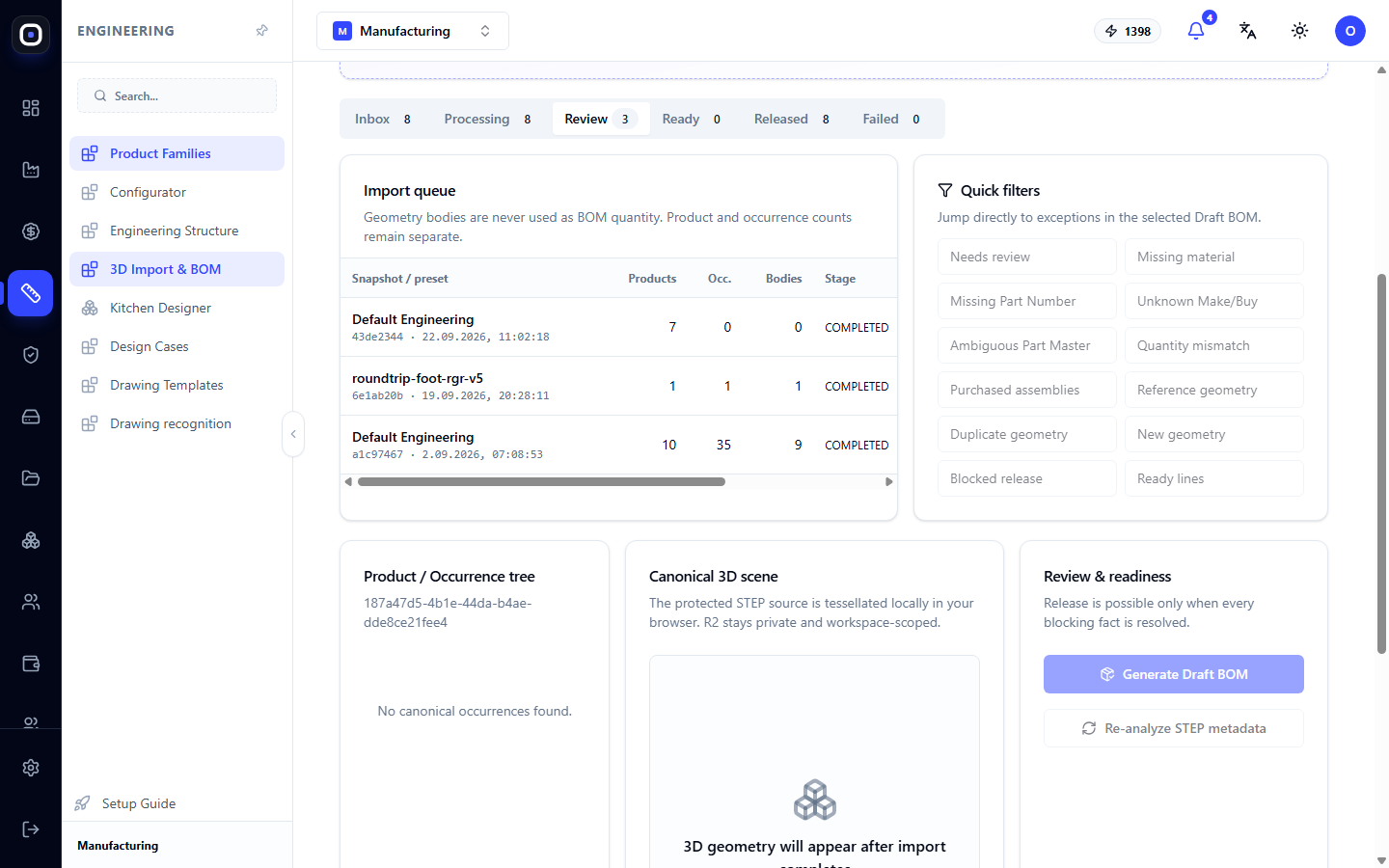
Click on a row in the queue, and three panels will open below.
Product / Occurrence tree — product tree: what assemblies it consists of and what parts are in each.
Canonical 3D scene — 3D model. It can be rotated, and the part selected in the tree is highlighted in the model.
Review & readiness — review and readiness. Here are the main actions:
- Generate Draft BOM — create a draft bill of materials from the parsed model;
- Set as primary 3D model — make this model the primary one for the product;
- Re-analyze STEP metadata — re-parse the model properties if the rules have changed.
From draft to release
The draft specification is the system's proposal. The technologist reviews it line by line:
- Checks the material of each part;
- Decides what the factory makes itself and what it buys;
- Resolves ambiguities;
- Confirms quantities.
When no problems remain in any line, the import moves to the "Ready" stage, and it can be released. After release, an engineering bill of materials appears, followed by a production bill of materials, from which orders are then created.
Typical workflow
- Open Engineering → 3D Import.
- Select the rule set that corresponds to the product.
- Drag the STEP file into the upload field.
- Wait for the import to move from "Processing" to "Review".
- Open it and click Generate Draft BOM.
- Go through the quick problem filters and solve each one.
- Release the import.
- Proceed to production orders.
Frequently Asked Questions
Import went into "Error"
The file is corrupted or has an unsupported format. Ask the designer to save the model again specifically as STEP.
The specification has twice as many parts as the product
Check if auxiliary geometry is included. The Reference geometry filter will show such lines.
The system did not recognize the material
The material is not recorded in the model or is recorded with a name that is not in your directories. Specify it manually in the draft.
The designer sent a corrected model
Upload it as a new import. The old snapshot will remain in history, and orders already launched based on it will not change.
What does "Ambiguous Part Master" mean?
The part resembles several existing ones in your database, and the system cannot choose itself. Indicate which part it is, or confirm that it is new.