Bill of Materials (BOM) Registry: What a Product Consists of and How It's Made
All workspace BOMs in one list: how an engineering BOM differs from a manufacturing BOM, what type, revision, and status mean, and how to view the composition.
A Bill of Materials (BOM) is a comprehensive list of everything that makes up a product: assemblies, parts, purchased components, along with their quantities. The BOM Registry page displays all workspace BOMs in a single list.
This page is used to verify the actual composition of an order, identify the active revision, and confirm that internally manufactured and purchased items are correctly designated.
Where to Find the Page
In the left-hand menu, open Production → BOM Registry. The page URL ends with …/erp/production/bom.
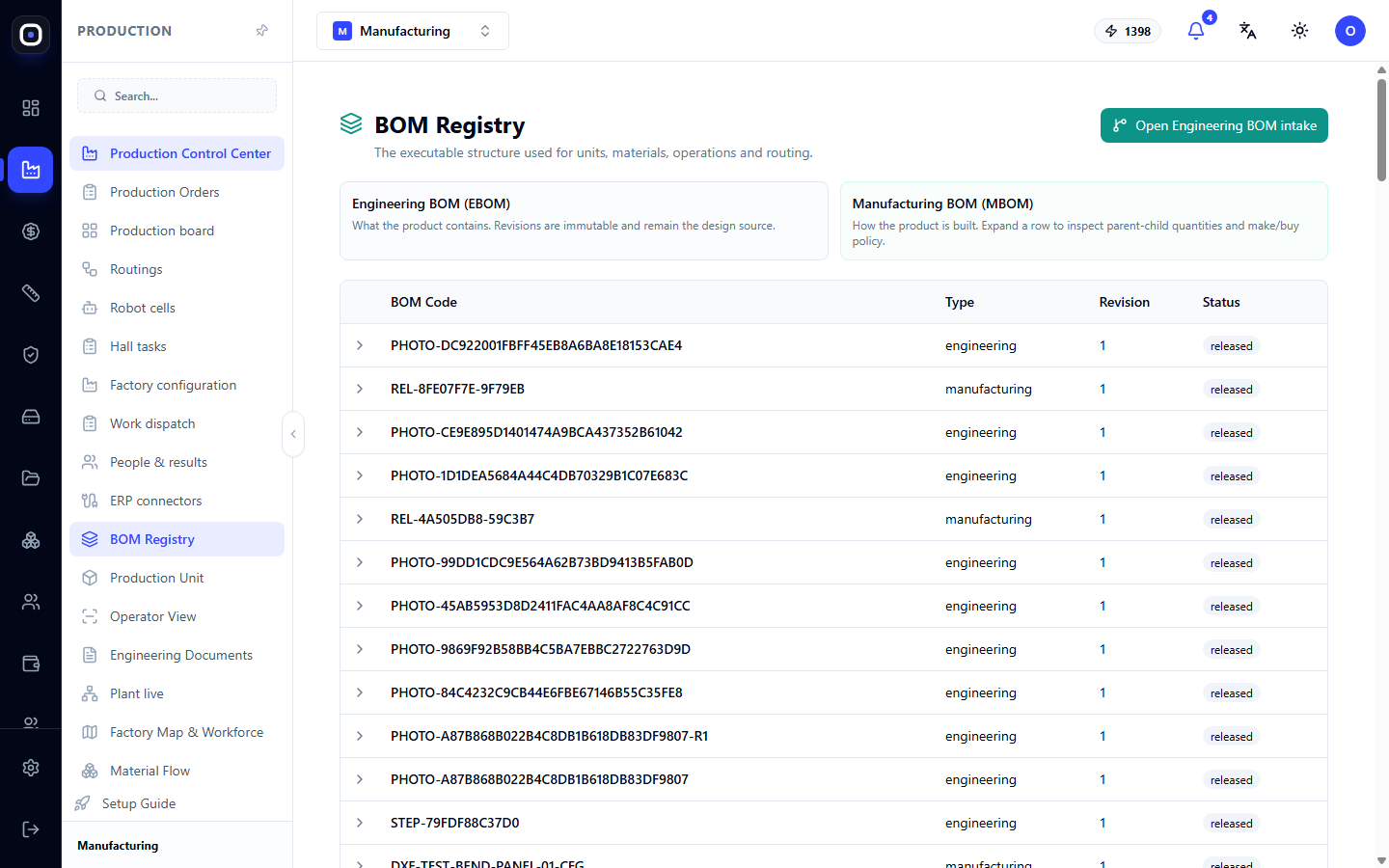
Some labels on this page are currently displayed in English. In this article, they are presented as you see them on the screen.
Two Types of BOMs
At the top of the page, there are two explanatory cards. They describe a distinction worth understanding once.
Engineering BOM (EBOM) — This answers the question "what does the product contain?" It's the designer's perspective: assemblies, parts, materials. Its revisions are not changed retroactively and remain the source of truth about the design.
Manufacturing BOM (MBOM) — This answers the question "how is the product built?" It's the technologist's perspective: which units the factory manufactures, which it purchases, and in what sequence they are assembled.
Example: A designer has a "welded frame" consisting of five tubes. In the engineering BOM, this is one assembly and five parts. In the manufacturing BOM, a decision is added: we cut the tubes ourselves, buy the end caps, and outsource the painting.
The same design at two different factories will have an identical engineering BOM but different manufacturing BOMs.
List of BOMs
The table has four columns:
- BOM Code — The BOM identifier. The beginning of the code indicates its origin:
STEP-...is created from a STEP model import,PHOTO-...from a quick photo estimate,REL-...during order release to production. - Type —
engineeringormanufacturing. - Revision — The version number. A new revision appears when the design or technology changes.
- Status — For example,
released, meaning it's issued and active.
How to View the Composition
Click on a manufacturing BOM row. It will expand and show the structure.
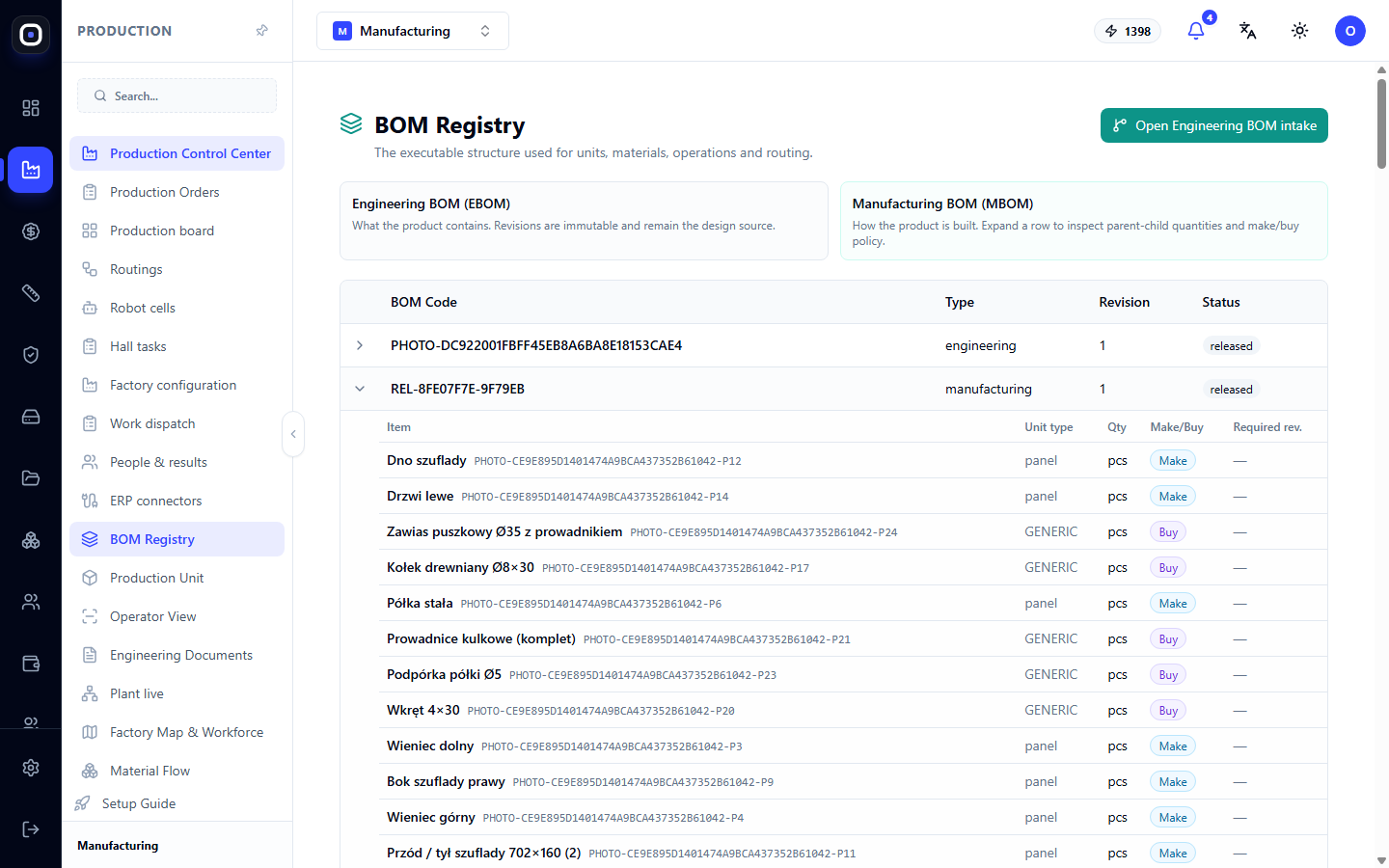
The expanded row shows:
- "parent — child" relationships: which assembly consists of what;
- quantities: how many units of each item are required for one parent assembly;
- "make or buy" policy for each item.
The "make or buy" policy determines the next steps. An item that the factory manufactures itself will receive production units and follow a routing. A purchased item will go into procurement needs and will not be included in cutting.
Where BOMs Come From
BOMs are not manually entered on this page. They originate from the engineering part of the system. The Open Engineering BOM intake button in the top right corner opens the 3D intake, where the product model is uploaded, and the system automatically breaks it down into assemblies and parts.
The typical path is:
- The designer uploads a STEP model to the 3D intake.
- The system builds the engineering BOM.
- The technologist reviews and confirms it.
- When an order is released, the system creates a manufacturing BOM and links it to the order.
This linking is important: if the design changes after release, the already released order will continue to be executed according to its fixed BOM.
Typical Workflow
- Open Production → BOM Registry.
- Find the BOM by code.
- Check the type, revision, and status.
- Expand the manufacturing BOM and review the composition and quantities.
- Verify that purchased items are marked as purchased, and in-house items as in-house.
Frequently Asked Questions
A part didn't go into cutting, even though we cut it ourselves
In the manufacturing BOM, it's marked as purchased or outsourced. Correct the supply method and create a new revision.
Why are there two BOMs for one product in the list?
One is engineering, the other is manufacturing. This is normal: they describe the same product from different perspectives.
I changed the design, but the order is still using the old one
That's how it should be. A released order is linked to its specific BOM revision. The new revision will apply to subsequent orders.
Can I create a BOM manually on this page?
No. The registry only displays BOMs. They are created from the engineering side: from model import or product configurator.