Manufacturing Drawings: How to Get a Technical Drawing from a 3D Model
The system automatically generates part or assembly drawings from manufacturing geometry. Learn how to select the source, type, and standard, add sections, preview the result, and save the drawing with a number.
A machine operator doesn't work with a 3D model. They need a drawing: views, dimensions, tolerances, and sections. Previously, someone had to manually draw such a drawing for each part.
The Manufacturing Drawings page automatically generates drawings from the same geometry used to manufacture the part. Since there's only one model, the drawing will always match what the machine actually cuts.
Where to Find the Page
In the left-hand menu, go to Production → Drawings. The page URL ends with …/erp/production/drawings.
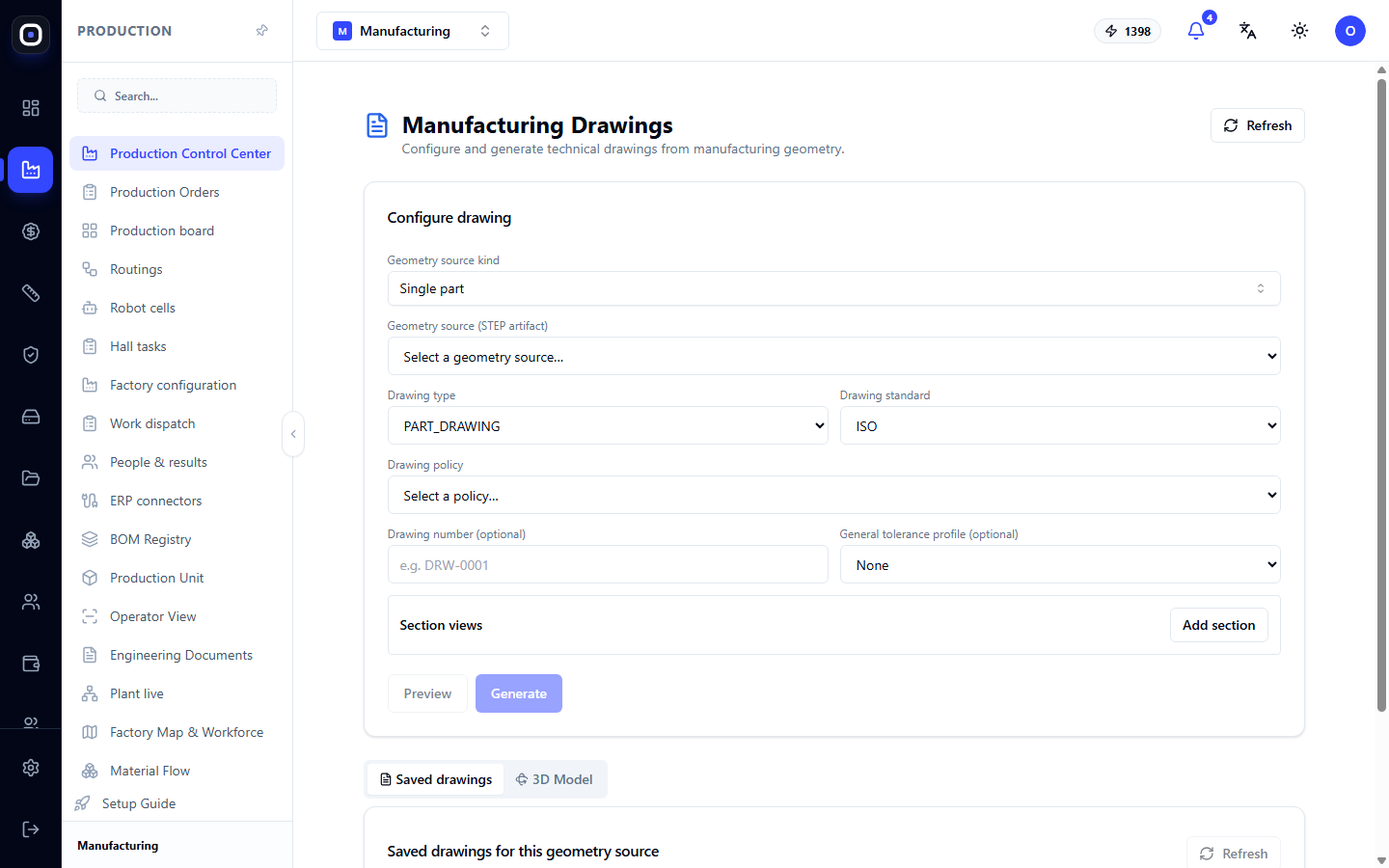
Some labels on this page are currently displayed in English. In this article, they are presented as you see them on the screen.
The page consists of two parts. At the top is the Drawing settings block, where you define what and how to draw. Below is the result: saved drawings and the 3D model.
Drawing Settings
What to Draw
- Geometry source kind — the type of source. Single part means one part. For an assembly of several parts, select assembly.
- Geometry source (STEP artifact) — the specific geometry. The list shows workspace parts with their codes. This is the same verified geometry used to prepare files for machines.
Until a source is selected, the rest of the page is empty: the system doesn't know what to display.
How to Draw
- Drawing type — for example,
PART_DRAWING, a part drawing. - Drawing standard — for example, ISO. The standard determines the arrangement of views, dimension formatting, and the title block.
- Drawing profile — a predefined set of formatting rules: which views to show, how to place dimensions, what sheet format to use. A profile ensures all factory drawings look consistent.
- Drawing number — optional, for example,
DRW-0001. If you have your own numbering system, enter the number here. - Tolerance profile — which tolerances to apply to dimensions without explicitly specified ones.
Sections
In the Section views block, use the Add section button to add sections. A section is needed when external views don't show important details: an internal cavity, wall thickness, or groove shape.
For a simple flat part, sections are not needed. For bent or milled parts, they are often essential.
Two Buttons
- Preview shows what the drawing will look like without saving anything. Use it while adjusting settings.
- Generate creates and saves the drawing.
The process is simple: first preview, then generate. This prevents failed attempts from accumulating in the saved list.
Saved Drawings and 3D Model
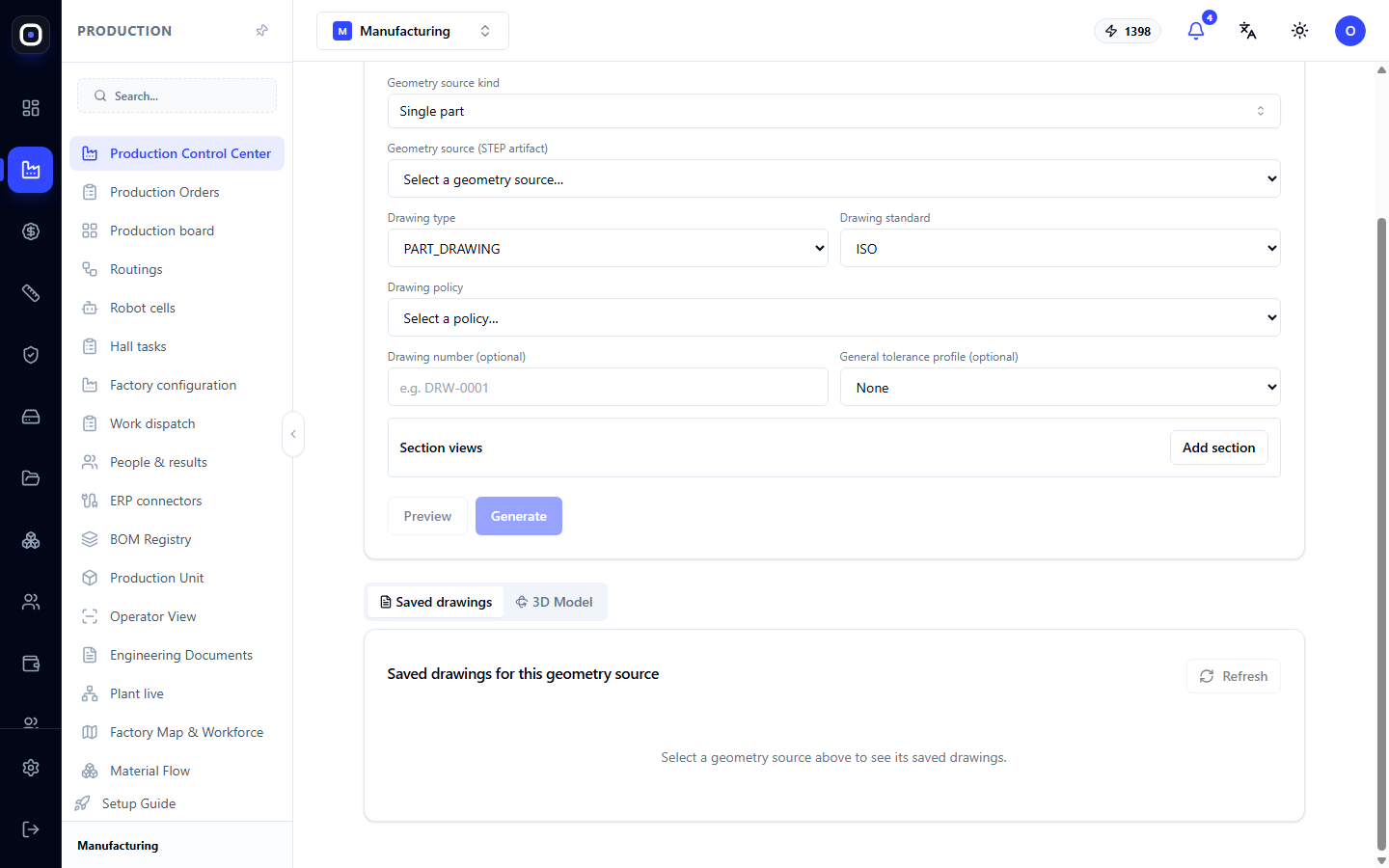
Below the settings, there are two tabs.
Saved drawings shows drawings already saved for the selected geometry source. If no source is selected, there will be a prompt to select one. The Refresh button reloads the list.
3D Model displays the three-dimensional model of the selected part. You can rotate and zoom it. This is useful to ensure the correct part is selected before generating the drawing.
Drawing Revisions
If a part changes, the drawing is regenerated. The new drawing doesn't overwrite the previous one: it becomes a new revision, and the old one remains in history.
This is important for traceability. If a batch was made according to revision 2, and then the designer released revision 3, it's always possible to show exactly which drawing the workshop used.
Where the Operator Sees the Drawing
A generated drawing doesn't need to be manually distributed. It automatically appears where needed:
- on the operator's workstation in an open batch, with the option to view full-screen and print;
- on the production board in the order tree, next to each part;
- in the Oprela Floor app on a phone or kiosk.
The production board also has bulk actions: Generate missing drawings creates drawings for all parts in the order that don't yet have them, and Print drawings (PDF) collects all sheets into one document. If you need to prepare an entire order, it's faster to do it from there. This page is needed when drawings require individual customization.
Typical Workflow
- Open Production → Drawings.
- Select the source type and the part itself in the Geometry source list.
- Switch to the 3D Model tab and confirm it's the correct part.
- Select the drawing type, standard, and profile.
- If needed, add sections using the Add section button.
- Click Preview.
- If everything looks good, click Generate.
- Verify that the drawing appeared on the Saved drawings tab.
Frequently Asked Questions
The list of geometry sources is empty
There are no parts with ready geometry in the workspace yet. First, upload a model via 3D import.
The "Generate" button is inactive
Either no geometry source is selected, or a required field is not filled. Check the settings block from top to bottom.
The drawing is missing a required dimension
Automatic drawing places dimensions according to the profile rules. Try a different profile or add a section if the dimension relates to an internal shape.
I changed the model, but the operator has the old drawing
The drawing does not update automatically after a model change. Regenerate it: a new revision will be created.
Can I upload my own drawing instead of a generated one?
Yes, there is a separate page for importing drawings in the engineering section.