Getting Started: Your First 7 Days with Oprela
A step-by-step guide for your first week: from registration and workspace setup to your first real order. What to do each day and how to navigate the possibilities.
Oprela is powerful, and that's why it's important not to try to set up everything at once. This plan guides you from an empty workspace to your first real sale in a week, with one task per day. You can go faster, but the order should be maintained.
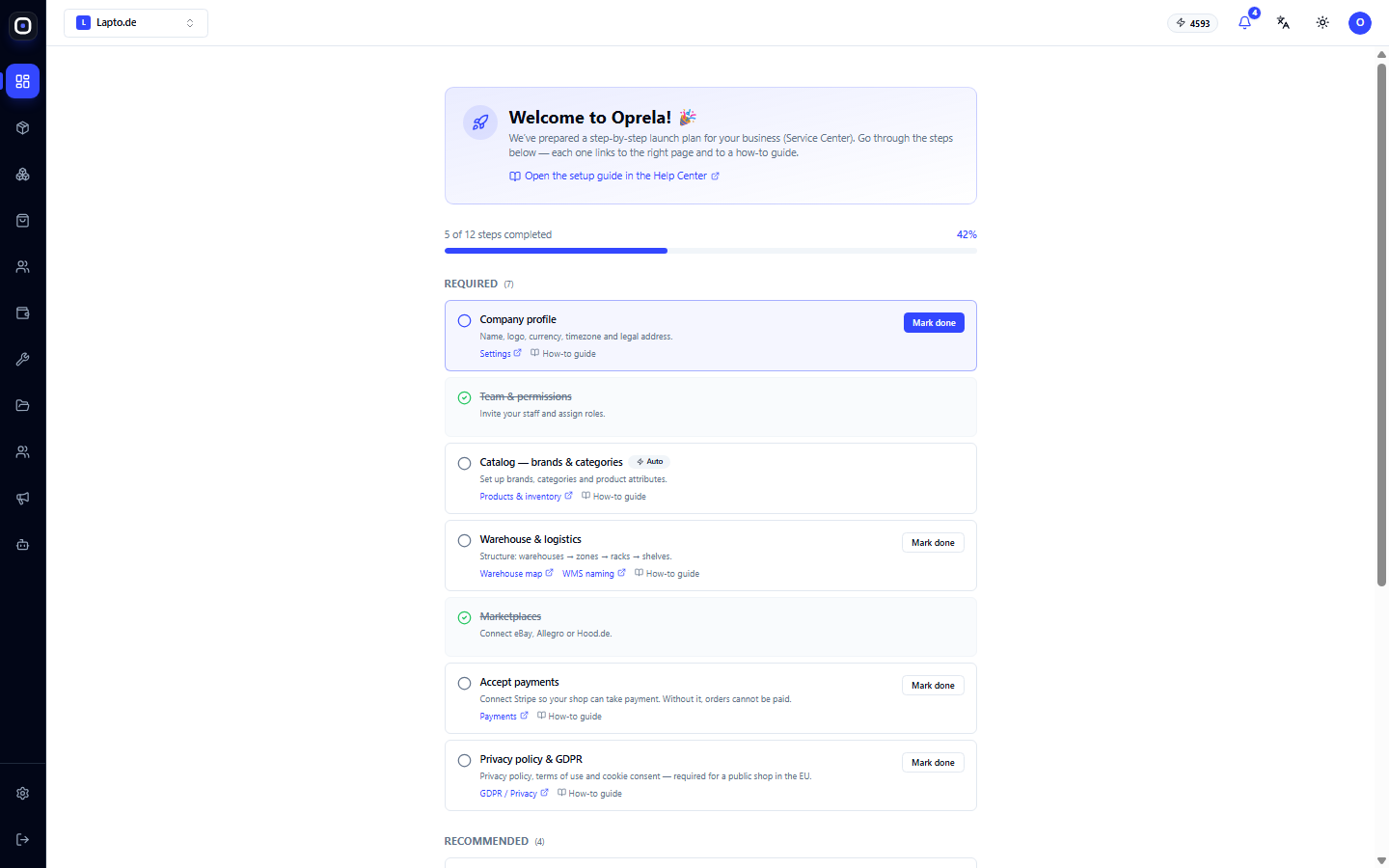
Day 1. Workspace and Modules
- Register and create a workspace. When creating, specify your business type — this determines the enabled modules and launch plan.
- Fill in your company profile: name, logo, details, language, currency.
- Open the Setup Guide. This is your navigator: each step leads to the right page and instructions.
Tip: Disable modules you don't need right now. A clean menu helps your team get used to the system faster.
Day 2. What You Sell
- Products: Import your catalog from CSV or Excel, or add the first 10–20 items manually. Ask AI to write descriptions.
- Services: Fill in your service catalog, prices, and duration.
- Set up warehouses and locations if you work with inventory.
Day 3. Website
- Create a website from an industry theme or generate it with AI based on your business description.
- Edit the homepage, contact information, and "About Us" page.
- Connect your own domain. You can publish the site even if it's not perfect yet: you can change it at any time.
Day 4. Sales Channels and Payments
- Connect payment methods (Stripe, PayPal).
- Set up shipping and courier services.
- If you sell on marketplaces, connect eBay, Allegro, or BaseLinker and check synchronization for a few products.
Day 5. Team
- Invite employees and assign roles.
- Verify that each role only sees what's necessary.
- Enable two-factor authentication for the owner and administrators.
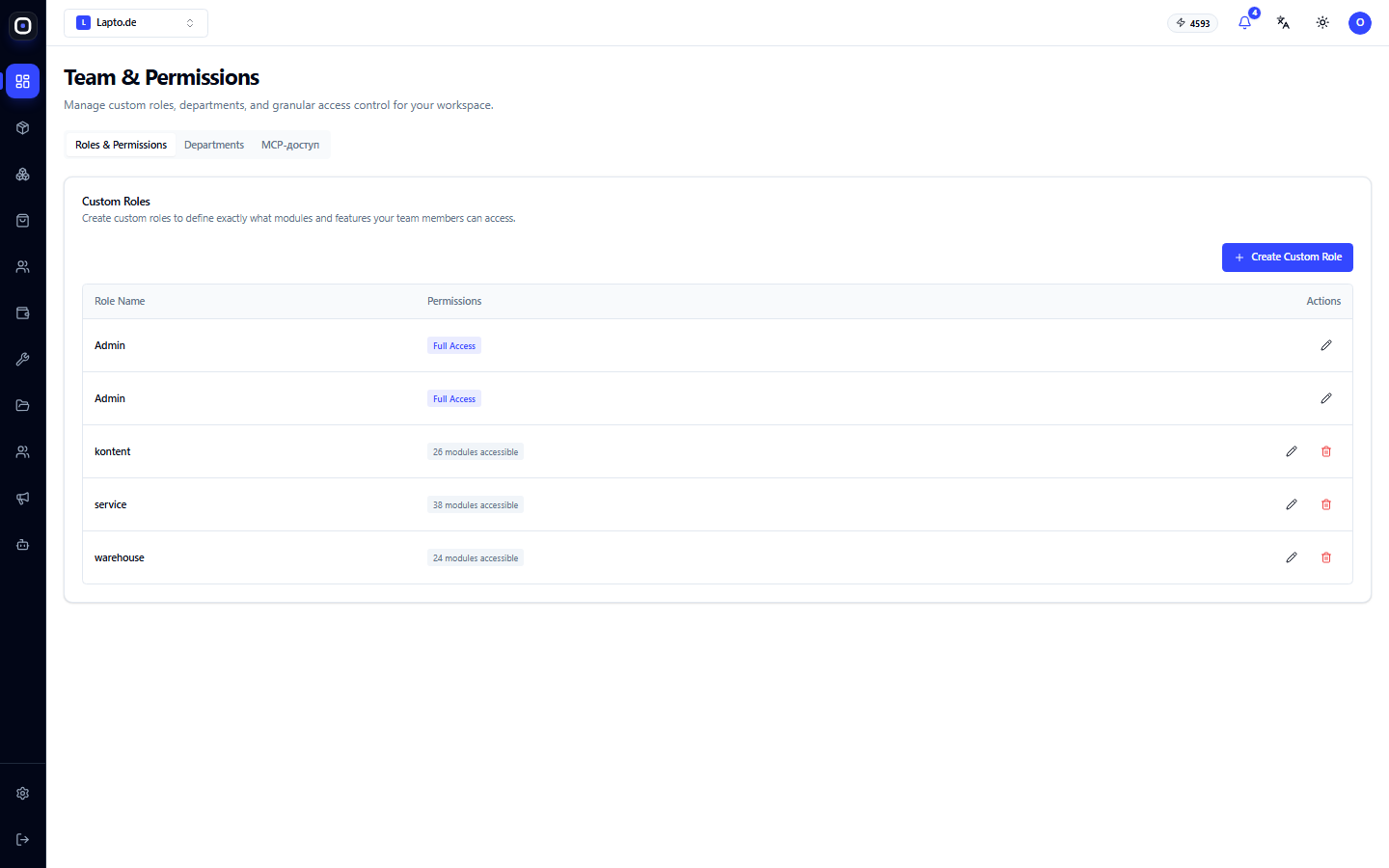
Day 6. Automation and Communication
- Connect email and, if needed, Telegram.
- Set up message templates for typical responses.
- Enable 2–3 simple automation scenarios: an email to the customer after an order, a notification to the manager about a new lead.
Day 7. First Order
Go through the entire process yourself: place a test order on the website, process it, create a shipment, issue an invoice. Anything that felt inconvenient is a sign that you need to fine-tune statuses, templates, or permissions.
After this — your first real customer.
What to Do Next
- Once a week, open the Command Center and see what has changed.
- Add modules when you feel the need: marketing, finance, HR, AI agents.
- Ask the AI assistant: it knows how the system works and will tell you where to set things up.