Inviting Employees and Access Roles
How to add employees to a workspace, available roles, and their permissions.
Your entire team can work in a workspace — each with their own account and role.
How to invite an employee
- Open Settings → Team & Permissions (or the module with the people icon → Team & Permissions).
- Click Invite member.
- Enter the employee's email and select their role.
- The employee will receive an email with an invitation link. After clicking the link, they will create an account (or log in to an existing one) and automatically join the workspace.
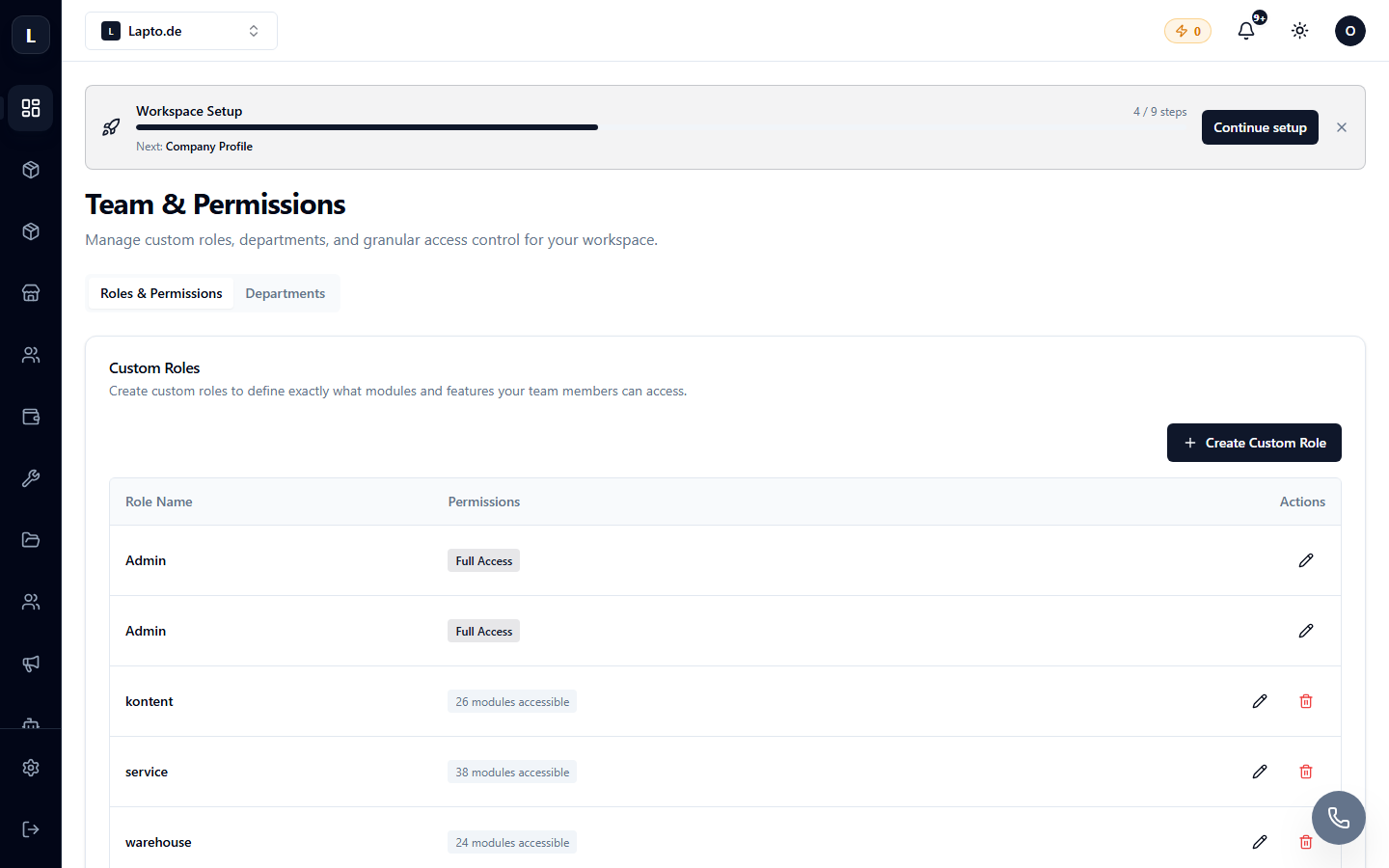
Roles
| Role | Permissions | |---|---| | Owner | Full access, tariff and billing management. One per workspace. | | Admin | Everything except deleting the workspace: settings, team, all modules. | | Member | Work in modules according to permissions; no access to settings and billing. | | Child | Limited sub-account for specific tasks. | | Terminal | Special account for the time tracking terminal — see Time Tracking Terminal. |
More detailed permissions within modules are configured on the same page — see Team Permissions.
User Limit
The number of users depends on your tariff plan. If the limit is reached, the invitation will not work — you need to upgrade to a higher plan (Tariff Plans) or deactivate one of the current members.