Kitchen Designer: From Room Plan to Production Specification
Two kitchen design modes: a six-step wizard and a professional editor with modules, room plan, 3D view, and production release.
A kitchen isn't a single product, but a dozen cabinets that need to fit into a specific space: between a wall and a window, around pipes and outlets. A two-centimeter error means the last cabinet won't fit.
The Kitchen Designer guides you through the entire process: room, module arrangement, materials, verification, and handover to production. As stated under the page title: design the kitchen layout, place modules on the room plan, and generate the production specification.
There are two modes. The Simplified mode guides you step-by-step through six stages. The Professional mode gives you full control over each module.
Where to find the pages
The professional editor opens at the address ending in …/erp/production/kitchen-designer, and the wizard at …/erp/production/kitchen-wizard. You can switch between them using the button in the top right corner.
The pages are available if the kitchen solution package is installed in the workspace.
Simplified mode: Wizard
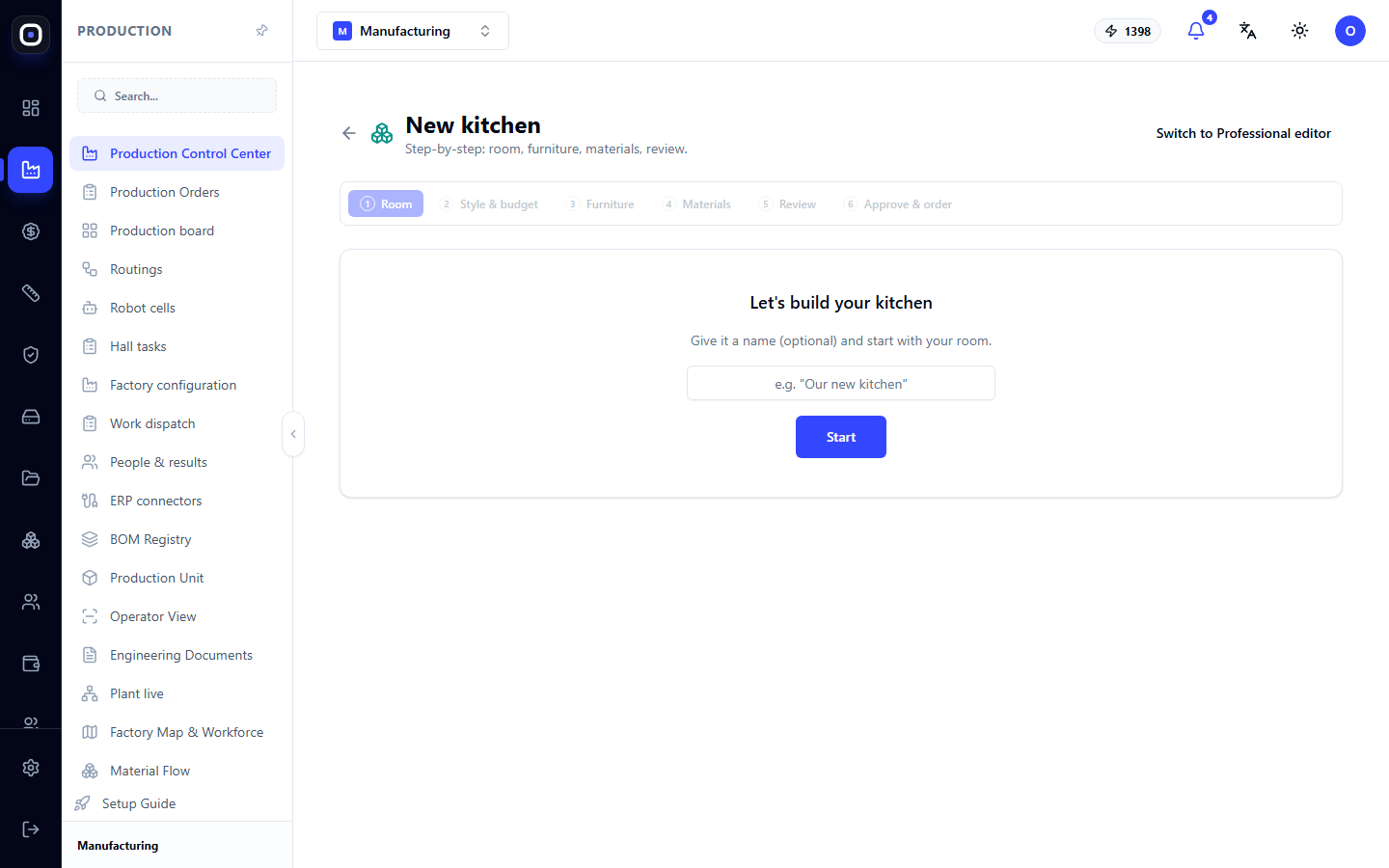
The page is called "New Kitchen", and its essence is described below the title: step-by-step — room, furniture, materials, verification.
Six steps are visible at the top. The current one is highlighted.
- Room. Wall dimensions, windows, doors, water and electricity hookups.
- Style and Budget. Overall look and cost limits.
- Furniture. Which modules are needed and where they are placed.
- Materials. Facades, carcasses, countertop, handles.
- Verification. The system checks for errors: overlaps, modules outside the wall, size mismatches.
- Approve and Order. Approval and handover to production.
To start, give the kitchen a name (optional) and click Start.
The wizard is suitable when the kitchen is typical and speed is important. It won't let you skip a step and won't let you proceed until all errors found by the verification are resolved.
The Go to Professional Editor button opens the same kitchen in the full editor.
Professional mode: Kitchen list
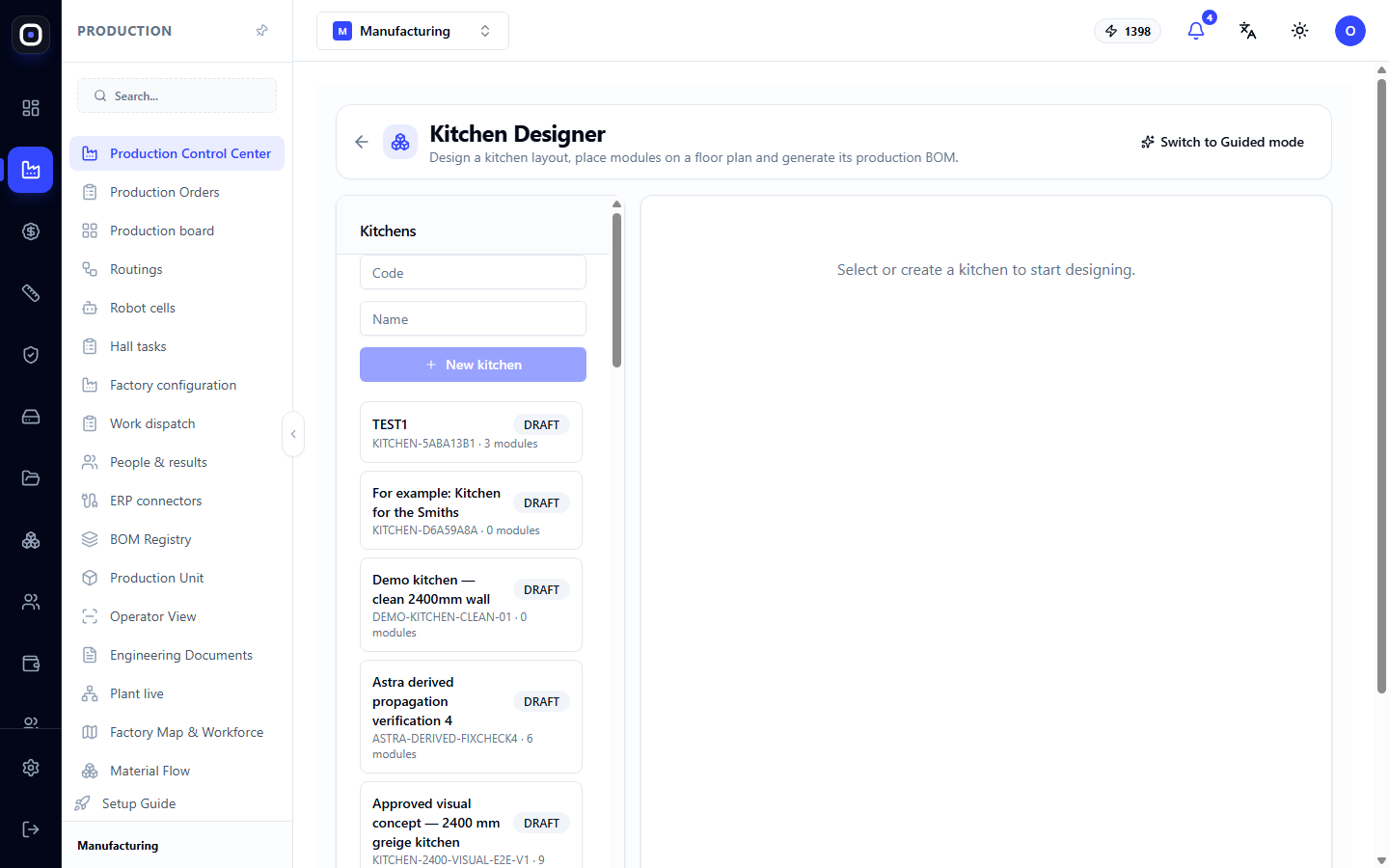
On the left is the "Kitchens" block. At the top is a form for a new kitchen with Code and Name fields and a New Kitchen button. Below is a list of existing kitchens.
For each kitchen, you can see:
- the name;
- status: DRAFT or RELEASED;
- code and number of modules.
Clicking on a kitchen opens it on the right. Until something is selected, it says: select or create a kitchen to start designing.
Give kitchens clear names with the client's name or address. A month from now, "Kitchen 7" won't mean anything to anyone.
Open Kitchen
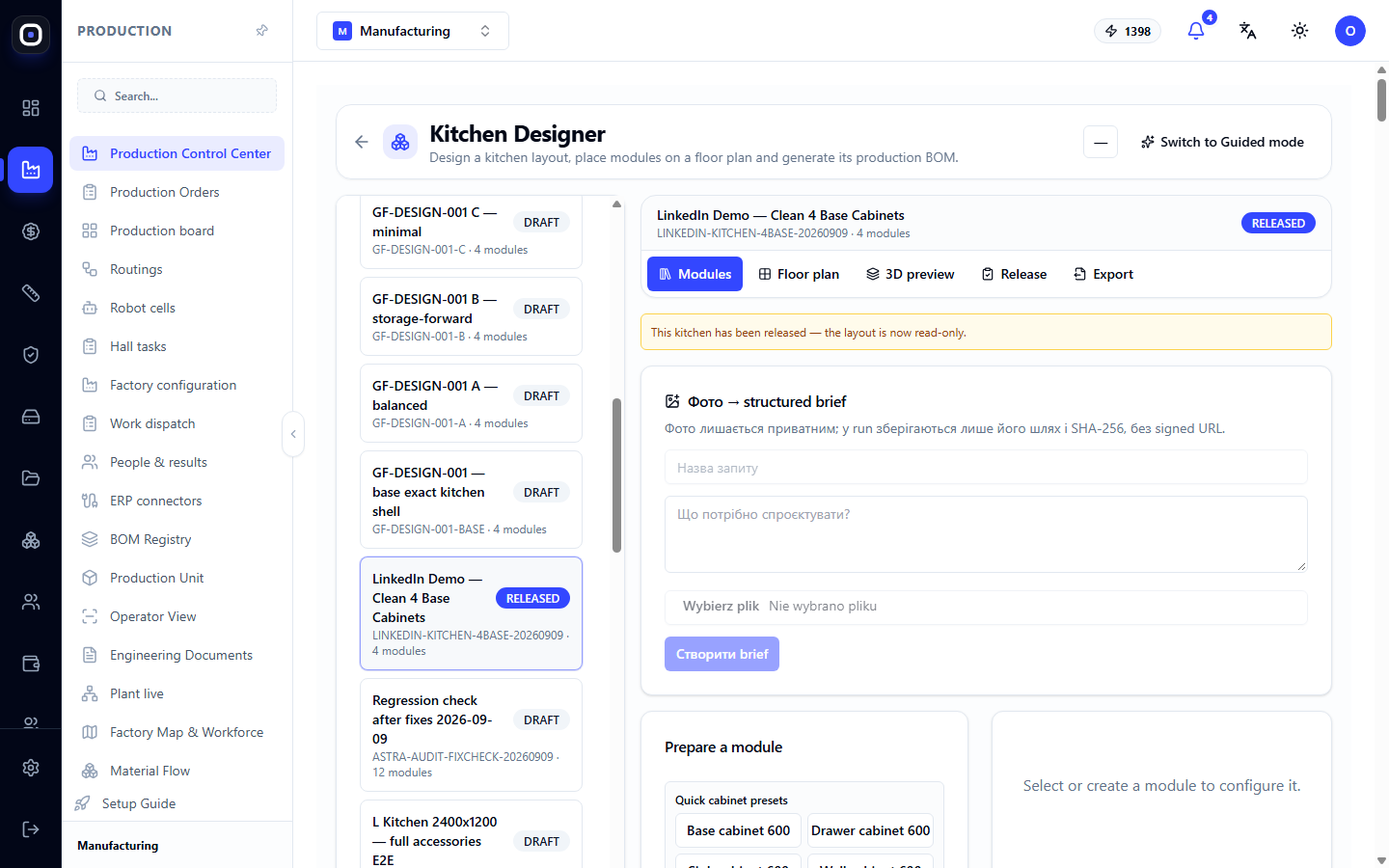
At the top are the kitchen name, code, number of modules, and status. Below them are five tabs.
Modules
The main tab. Here you fill the kitchen with cabinets.
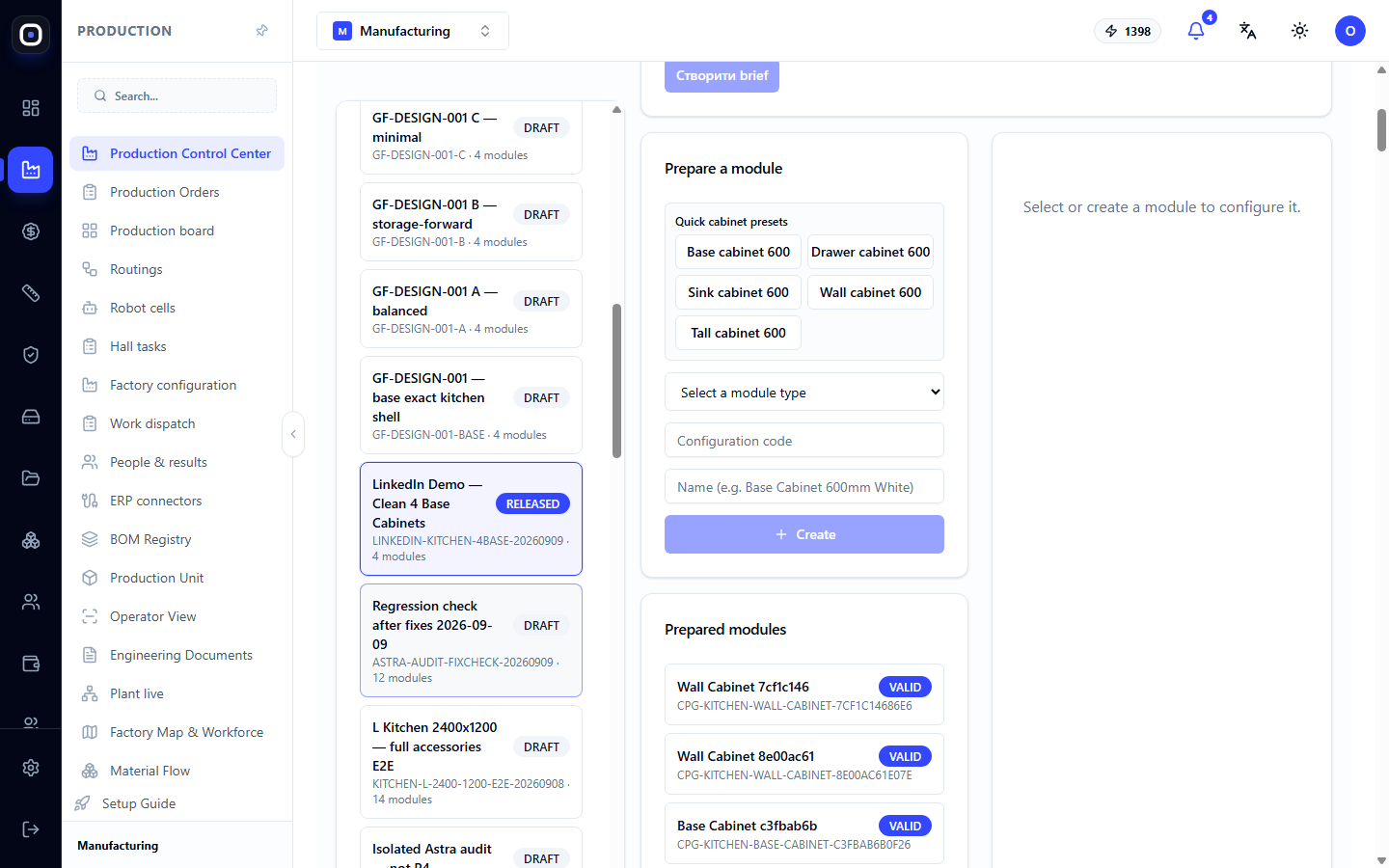
The "Prepare Module" block offers ready-made templates with one click:
- base cabinet 600;
- drawer cabinet 600;
- sink cabinet 600;
- wall cabinet 600;
- tall cabinet 600.
If the templates are not suitable, select the module type from the list, set the code and name, and click Create.
Below is the "Prepared Modules" list. Next to each is a VALID mark if the module has passed verification. Click on a module, and its settings will open on the right: dimensions, contents, facade.
A module here is not a drawing, but a parametric product. Change the width from 600 to 450, and the system automatically rebuilds the side panels, shelves, facade, and recalculates the specification.
Room Plan
Here you define the room: walls, windows, doors, columns, water, gas, and electricity hookup points. After that, modules are arranged along the walls.
Hookup points are important. The system checks if the sink is near the water and can suggest a place for it itself.
3D View
A three-dimensional image of the kitchen. It can be rotated. This is where things that are hard to notice on the plan are best seen: a wall cabinet overlapping a window, or a door opening into a wall.
Images from here are shown to the client for approval.
Release
Verification and handover to production. Before release, the system checks:
- if modules overlap;
- if all of them are within the room;
- if the room's perimeter is closed;
- if materials have been selected for all modules.
If there are errors, the release is blocked, and what needs to be corrected is written next to it. Warnings do not block, but they should be read.
After release, the kitchen gets the status RELEASED. A specification is generated from it: every panel, every edge, every hinge. The path then is standard: production order, cutting, workshop.
Export
Project export: specification and data for external transfer.
Brief description of requirements
In the open kitchen, there is a block with a structured description of the client's wishes: what they want, what dimensions they provided, what limitations. From this, a task description can be created for further work.
This is where initial requirements are recorded so that a month later there's no dispute about whether the client really asked for a dishwasher.
Which mode to choose
Wizard, if:
- the kitchen is typical, along one or two walls;
- a manager, not a designer, is designing;
- it's important to quickly provide the client with an option.
Professional Editor, if:
- the room is complex: niches, columns, angled corners;
- non-standard modules are needed;
- precise control over every dimension is required.
You can start with the wizard and finish in the editor: it's the same kitchen in two views.
There's also a third way: describe the kitchen verbally in a design chat, and an assistant will build it themselves.
Typical workflow
- Open the wizard and click Start.
- Define the room with dimensions and hookup points.
- Choose a style.
- Arrange the furniture.
- Select materials.
- Go through verification and correct errors.
- View the kitchen in 3D and show it to the client.
- After approval, release the kitchen.
- Proceed to production orders.
Frequently Asked Questions
The sum of module widths does not equal the wall length
Verification will show this. Add a filler strip or change the width of one of the modules.
Release is blocked
There is an error: module overlap, module outside the wall, or an unclosed room perimeter. The reason is written on the "Release" tab.
Changed the facade, but nothing changed in 3D
Refresh the view. Changing material requires rebuilding the model.
Can a released kitchen be changed?
A released kitchen is fixed because production may have already started for it. To make changes, create a new version.
The required module is not in the list
Available modules depend on the installed kitchen package. A non-standard module can be created as a separate family in the configurator.
The page is not in the menu
The kitchen solution package is not installed in the workspace. Install it on the solution packages page.