Industry Packs: How to Configure Your System for Your Type of Production
An industry pack adds unit types, materials, and operations specific to your industry. Learn how to enable a pack, populate initial data, and how industry packs differ from solution packs.
A manufacturer of metal racks and a manufacturer of kitchens use the same system but speak different languages. The former talks about pipes, lasers, and welding. The latter talks about panels, edge banding, and facades.
An Industry Pack teaches the system the language of your industry. It adds the necessary unit types, materials, and operations to the universal core so you don't have to enter them manually from scratch.
Where to Find the Page
The easiest way to open it is from the Production Control Center: below the seven cards, there is a link Manage Industry Packs. The page address ends with …/erp/production/industry-packs.
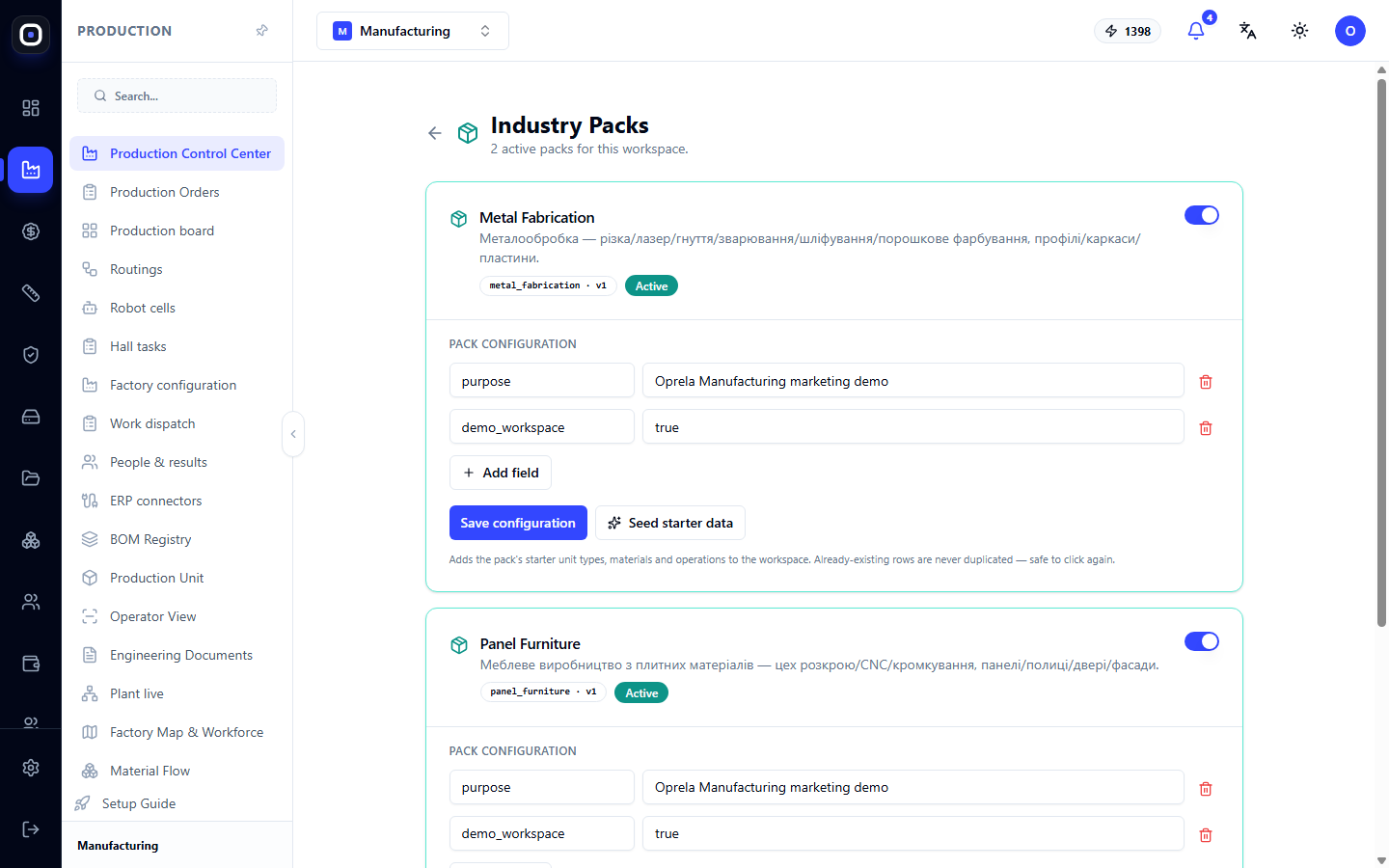
Below the title, it shows how many packs are active in the workspace.
How the System is Structured: Core and Packs
To understand packs, it's worth knowing one idea.
There is a universal core: orders, units, routings, operations, quality, warehouse. It's the same for everyone and knows nothing about a specific industry.
There are industry packs: they fill the core with content. A pack says: "in this industry, there are such-and-such parts, made from such-and-such materials by such-and-such operations."
Thanks to this, you can enable several packs simultaneously. A factory that makes furniture with a metal frame enables both metalworking and panel furniture.
Available Packs
Each pack is shown as a card with a name, a brief description, a technical code, a version, and a toggle switch.
- Metal Fabrication — cutting, laser, bending, welding, grinding, powder coating. Profiles, frames, plates.
- Panel Furniture — furniture production from panel materials. Cutting shop, CNC machining, edge banding. Panels, shelves, doors, facades.
- Retail Fixtures — retail equipment. Racks, gondolas, stands.
The Active label means the pack is enabled.
How to Enable a Pack
Toggle the switch in the upper right corner of the card. The pack will become active, and a block of settings will open below it.
Enabling a pack by itself doesn't add anything to your directories. It only tells the system that this pack is relevant to you. Data is added by a separate button, which is described below.
Pack Settings
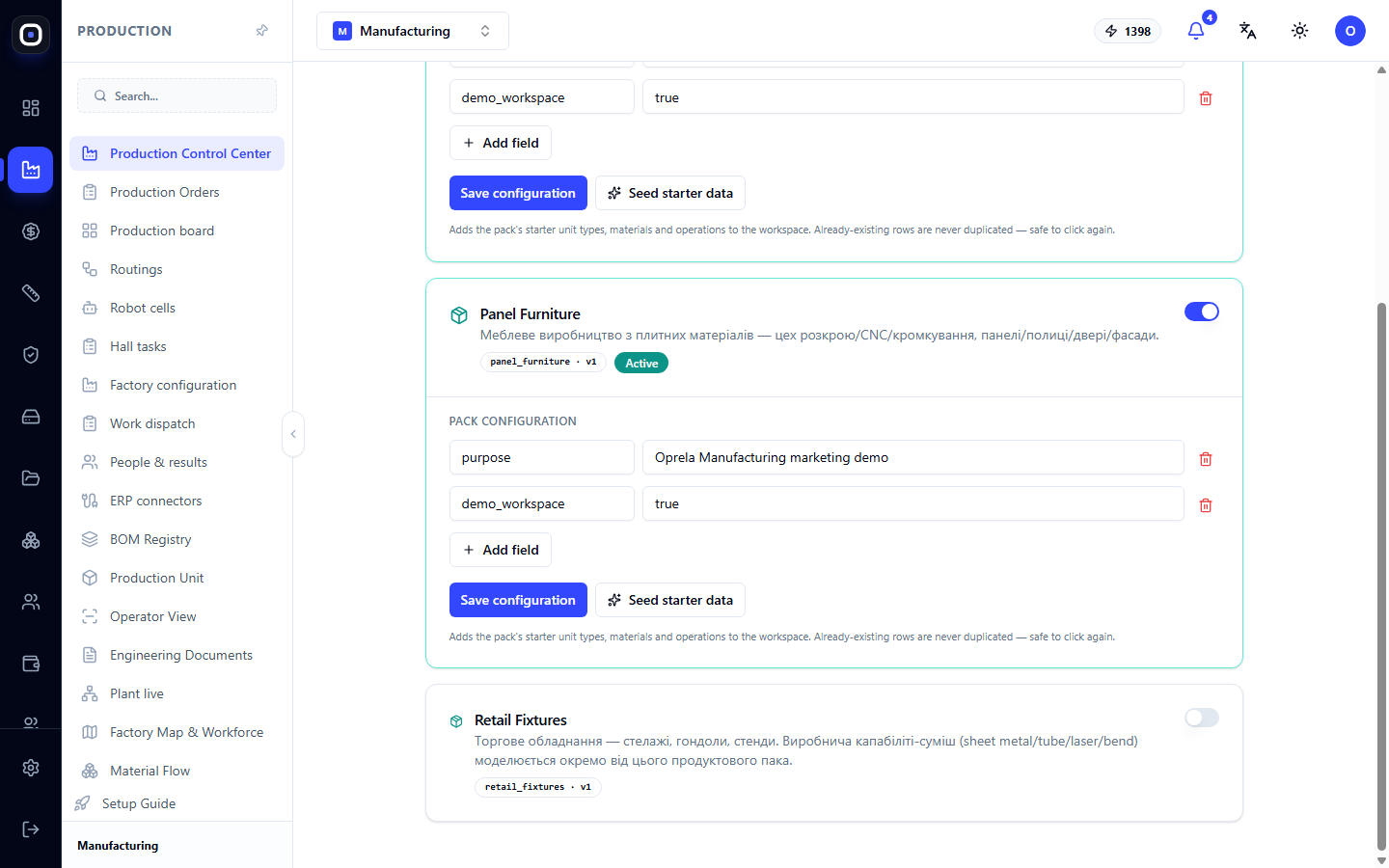
The "Pack Settings" block stores additional parameters as key-value pairs. The Add Field button adds a new pair, the trash can icon deletes, and Save Settings saves changes.
Most factories do not need to touch these fields. They are intended for special cases configured by an integrator.
Populate Initial Data
This is the most useful button on the page. Populate Initial Data adds the pack's initial unit types, materials, and operations to the workspace.
Below the button, there is an important clarification: it does not duplicate existing records, so pressing it repeatedly is safe.
This means that if you have already entered some materials manually, the button will only add what is missing. And if the pack has been updated and new operations have appeared, pressing it again will load them.
After populating, you get a working foundation: unit types for which you can write routings, and operations from which these routings are composed.
Solution Packs
Next to industry packs, there is another level — solution packs. Their page opens at an address ending in …/erp/production/solution-packs.
The difference is as follows.
- An Industry Pack describes the industry in general: what types of parts, materials, and operations exist.
- A Solution Pack is a ready-made solution for a specific type of product. For example, the "kitchen" pack contains everything for kitchens: typical modules, their construction rules, facades, handles, countertops.
A solution pack relies on an industry pack. The kitchen pack requires the panel furniture pack because a kitchen consists of panels.
What's on the Page
The page is divided into two parts.
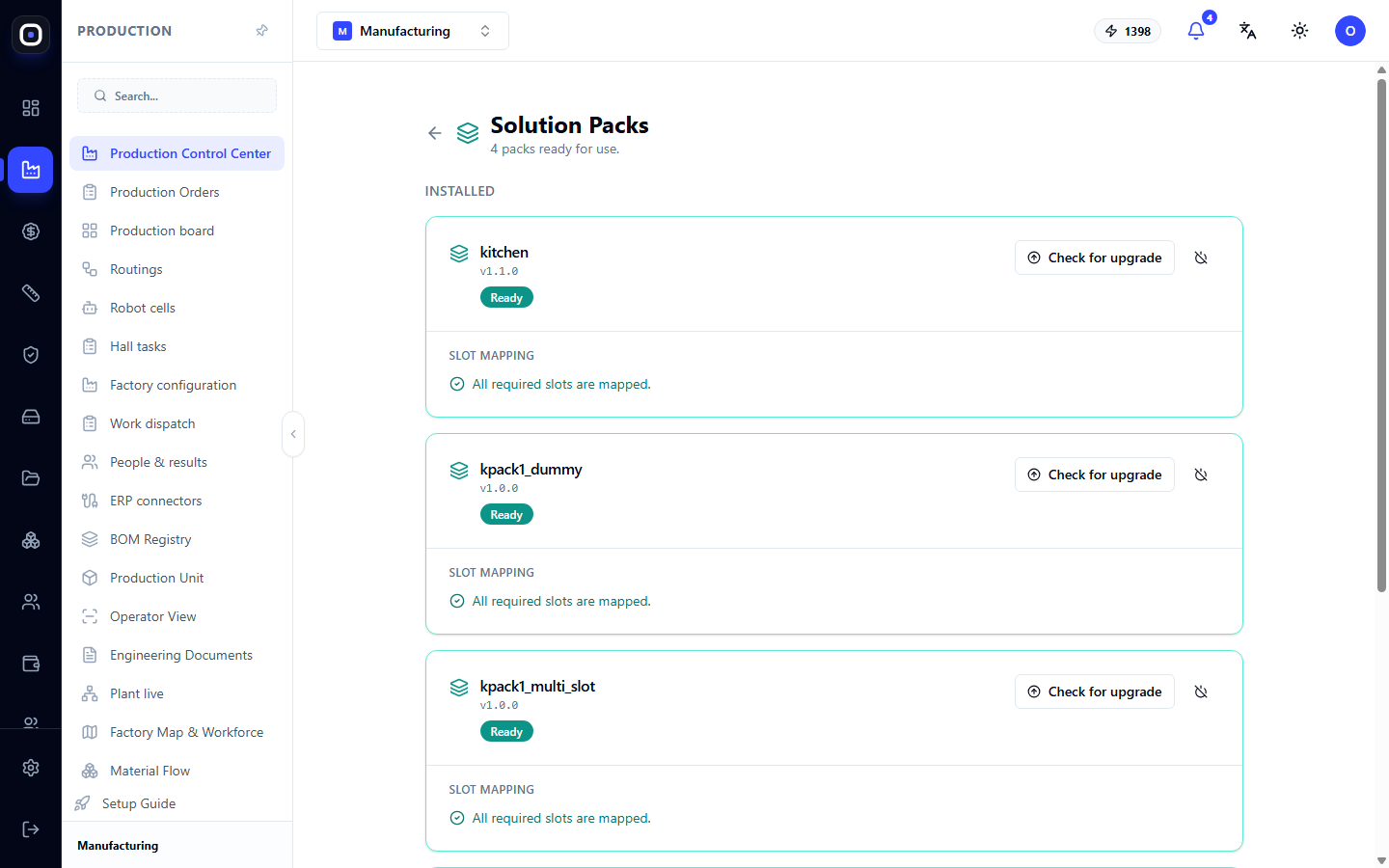
Installed — packs that are already active. For each, you can see the name, version, and status, for example, "Ready". The Check for Updates button shows if a new version has been released.
Below each pack, there is a line "Slot Binding". A slot is a place where the solution pack expects to substitute something from your workspace: a specific material, operation, or machine. The message "All required slots are bound" means that the pack is fully configured.
Available for Installation — packs that can be added with the Install button. If a pack requires an industry pack that you don't have, this will be stated, and you won't be able to install it until you enable the required one.
Typical Workflow
- Open the Production Control Center and click Manage Industry Packs.
- Enable the packs that correspond to your production.
- For each, click Populate Initial Data.
- Go to routings and check that unit types and operations have appeared.
- If you make typical products, open solution packs and install the desired one.
- Check that all required slots are bound.
Frequently Asked Questions
I enabled the pack, but nothing changed.
Enabling only marks the pack as active. Click Populate Initial Data to add unit types, materials, and operations.
Will the "Populate Initial Data" button corrupt my own data?
No. It only adds what is not yet present and does not change existing records.
Can I enable multiple packs?
Yes. If your production combines several technologies, enable all the necessary ones.
What happens if I disable a pack?
It will no longer be active, but the already added unit types, materials, and operations will not disappear. Routings and orders that rely on them will continue to work.
The solution pack is not installing.
It requires an industry pack that you don't have. The reason is written below the pack name. Enable the required industry pack and try again.