Design Chats: Describe Your Kitchen in Words, and the Assistant Builds it in 3D
A conversation with an assistant instead of a drawing: you describe the room and your wishes, it arranges modules, shows the result in 3D, and prepares the project for production.
Kitchen design usually starts with a conversation: "wall two-forty, sink under the window, stove on the left, refrigerator separate." Then the designer spends an hour transferring this into a program.
Design Chats shorten this path. You write the same to the assistant, and it arranges the modules itself and shows the result in 3D. As stated in one sentence under the page title: describe your kitchen in words — the assistant builds it in 3D.
Where to find the page
In the sidebar menu, open the Engineering section and the Design Chats item. The page address ends with …/erp/engineering/design-cases.
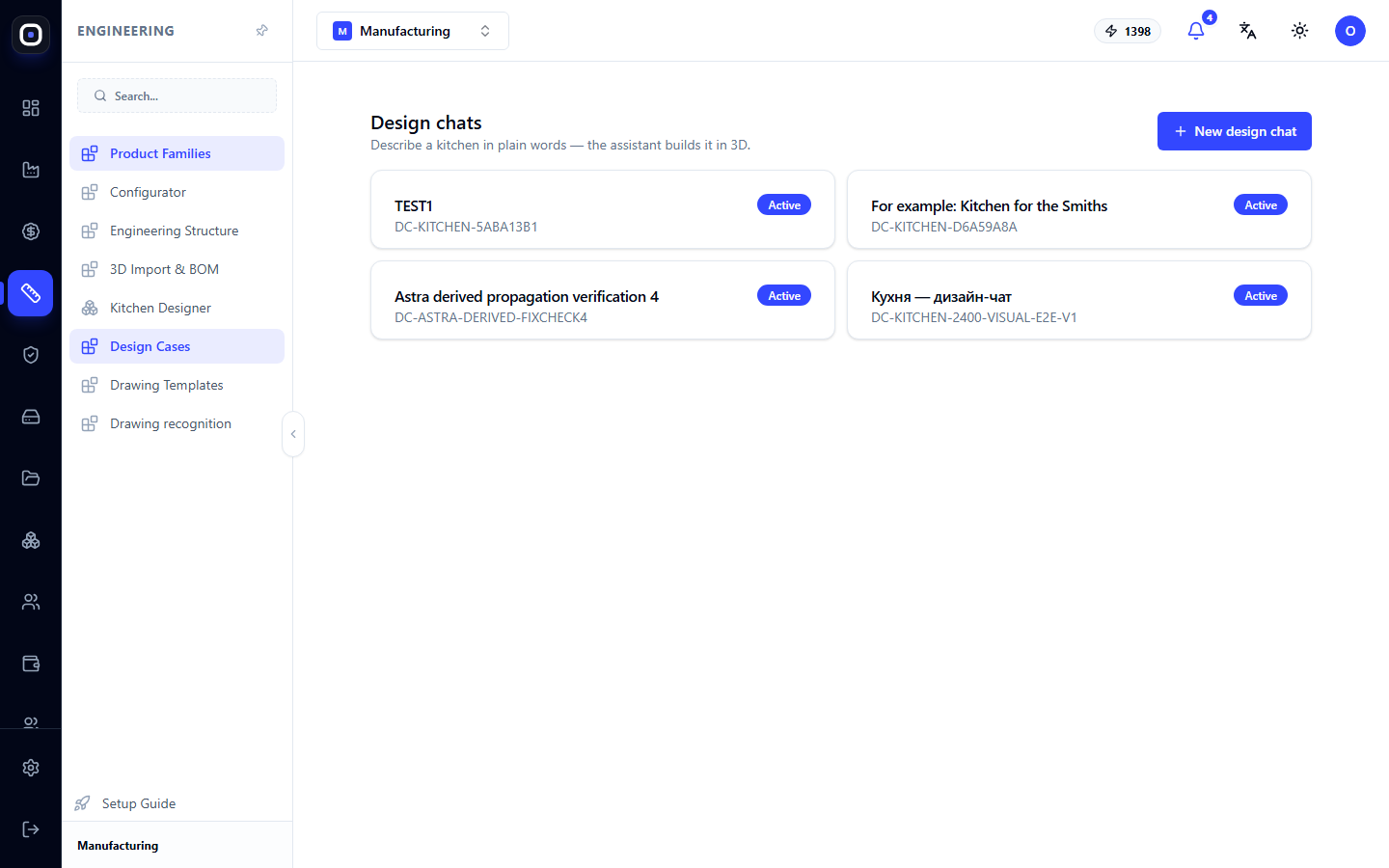
List of chats
The page shows all design chats as cards. On each:
- name — usually the client's or object's name, for example, "Kitchen for the Smith Family";
- code starting with
DC-; - status, for example, "Active".
Clicking on a card opens the chat. The New Design Chat button in the upper right corner creates a new one.
One chat corresponds to one project. Do not mix two kitchens in one conversation: the assistant relies on the entire chat history.
What to write to the assistant
Write as you would explain to a person. The assistant needs three groups of information.
Room. Wall lengths, where windows and doors are, where water, gas, and electricity are connected. If there are photos or a plan, add them to the chat: the assistant will read the dimensions.
What should be in the kitchen. Sink, stove, oven, refrigerator, dishwasher. Where each item should be placed, if important.
Style. Facade color, handle type, countertop material. You can name a ready-made style, and the assistant will apply it to the entire kitchen at once.
The more accurately you describe the room, the fewer corrections there will be. A wall size "about two and a half meters" will result in a project that is "about" that size.
What the assistant does
- Builds the room: walls, openings, connection points.
- Arranges modules from the catalog: base cabinets, wall cabinets, tall cabinets, appliances.
- Applies style: facades, handles, countertop.
- Checks itself: whether the sum of widths equals the wall length, whether modules overlap, whether the sink is near the water connection.
- Shows the result in 3D from several angles.
The assistant does not invent modules. It takes them from your workspace's catalog. If the catalog does not have a dishwasher of the required width, it will say so, rather than substituting something similar.
How to correct
Just keep writing in the chat: "move the sink to the window," "make the wall cabinets taller," "change the handles to black." The assistant will modify the project and show a new version.
Each change is saved as a revision. You can revert to a previous version.
What the assistant does not do on its own: it does not consider the project ready if the check found an error. For example, if the room outline is not closed or a cabinet extends beyond the wall, it will stop and ask you to resolve it.
Client approval
The finished version is shown to the client. The client sees images of the kitchen and can approve it or request changes. Their response is returned to the chat.
Approval is recorded: it shows which version and when the client approved it. If the project is changed after this, approval must be obtained again.
Transfer to production
The approved project is converted into an engineering project with precise dimensions for each detail. The path then follows the usual steps: specification, production order, workshop.
This means that from the words "I want a kitchen two-forty" to a list of panels for cutting, there is no manual data transfer.
What is needed for this to work
- Module catalog. The assistant builds from what is available in your catalog. The easiest way to get it is from a kitchen solution package.
- Styles. Sets of "facade + handle + countertop" so you don't have to choose everything separately for each cabinet.
- Materials and prices, if you want to see the cost immediately.
Typical workflow
- Open Engineering → Design Chats and click New Design Chat.
- Give the chat a name with the client's name.
- Describe the room, add photos or a plan.
- List what should be in the kitchen and name the style.
- View the 3D images.
- Correct what is wrong with regular messages.
- Send the version to the client for approval.
- After approval, transfer the project to production.
Frequently Asked Questions
The assistant placed cabinets on all walls, but only one is needed
Specify in the message along which wall the kitchen should be and its length.
The assistant says the catalog does not have the required module
That's right: it doesn't silently substitute. Add the module to the catalog or choose a different size.
Can chats be used for non-kitchen items?
The page is currently designed for kitchens. For other products, use the configurator or public studio.
The client approved, but then we changed something
The approval was for the previous version. Show the client the new one and get approval again.
Does the chat consume AI credits?
Yes, the assistant's work is paid for with workspace credits. The remaining balance is visible in the top bar of the screen.