Factory Configuration: Halls, People, Competencies, Rules, and Terminals
A single page where the owner describes how the factory operates. Eight setup steps, seven tabs, and rules that can be set for the entire business, a factory, or a specific hall.
Factory Configuration is the owner's page. Here, you describe once how your factory is organized: what halls there are, who works in them, who manages them, and what rules apply. Everything the foreman sees on the board and the employee sees on the terminal comes from here.
If something in the workshop is working "not as we usually do," the fix almost always needs to be made here.
Where to find the page
In the left menu, open Production → Factory Configuration. The page address ends with …/erp/production/factory.
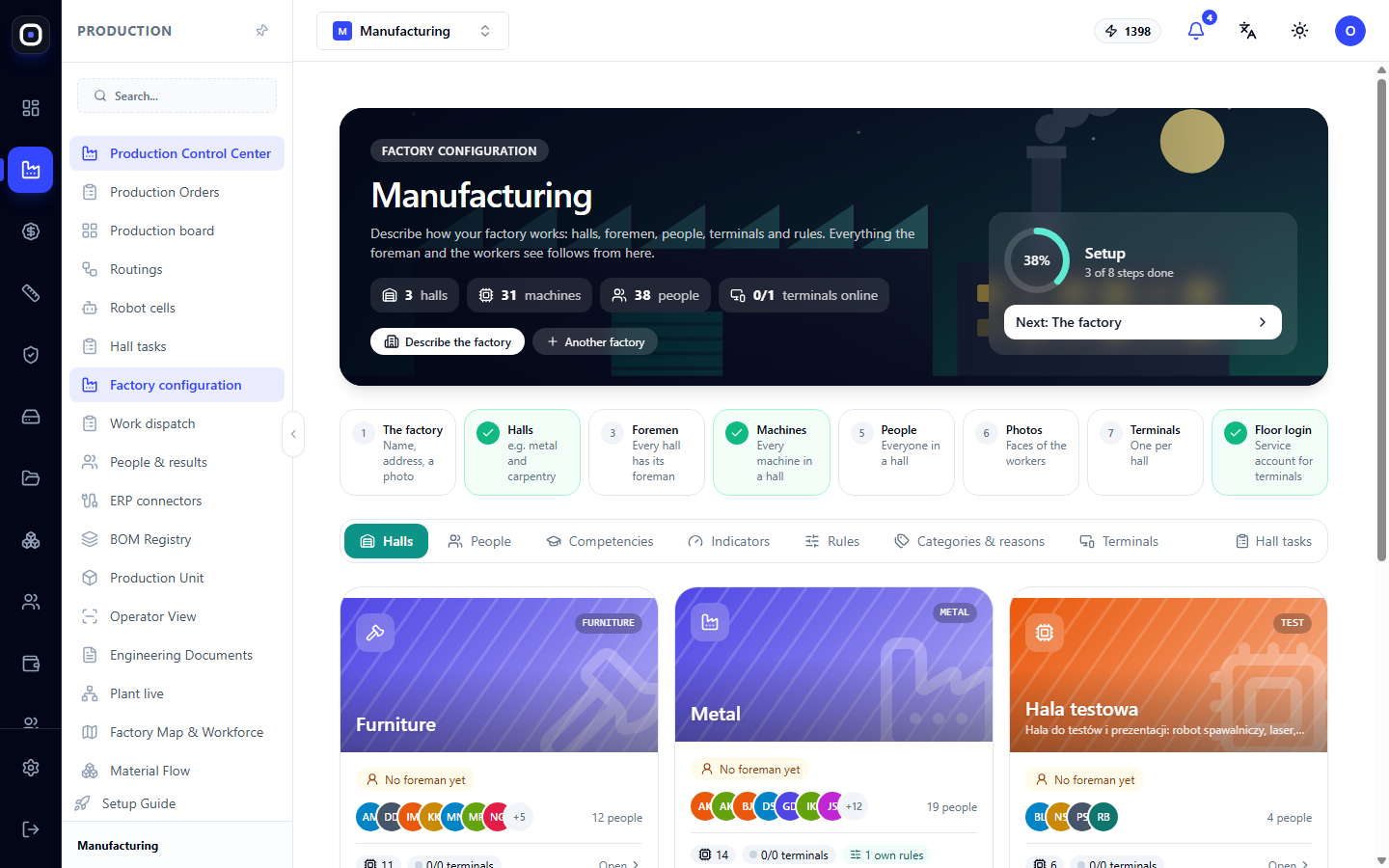
Top panel
The dark panel at the top shows the factory name and four counters: how many halls, machines, people, and how many terminals are online (e.g., 0/1 means one terminal exists but is currently offline).
Two buttons below the counters:
- Describe factory — name, address, and photo of the factory;
- Another factory — adds a second factory if you have multiple sites.
To the right is a Setup ring with a percentage and a caption like "3 of 8 steps completed." The Next button below it leads to the first uncompleted step. This is the fastest way to go through the setup: click "Next" until the ring shows 100%.
Eight setup steps
Below the panel are eight step cards. Completed ones are marked with a green checkmark.
- Factory — name, address, photo.
- Halls — for example, metal and carpentry.
- Foremen — each hall has its own foreman.
- Machines — each machine in its own hall.
- People — each employee in a hall.
- Photos — employee faces.
- Terminals — one per hall.
- Shop floor login — service account for terminals.
The order is not accidental. A foreman cannot be assigned until there is a hall, and a hall terminal makes no sense until there are people in the hall.
Seven tabs
Below the steps is a row of tabs: Halls, People, Competencies, Metrics, Rules, Categories & Reasons, Terminals. To the right is a link Hall tasks, which opens the task board.
"Halls" tab
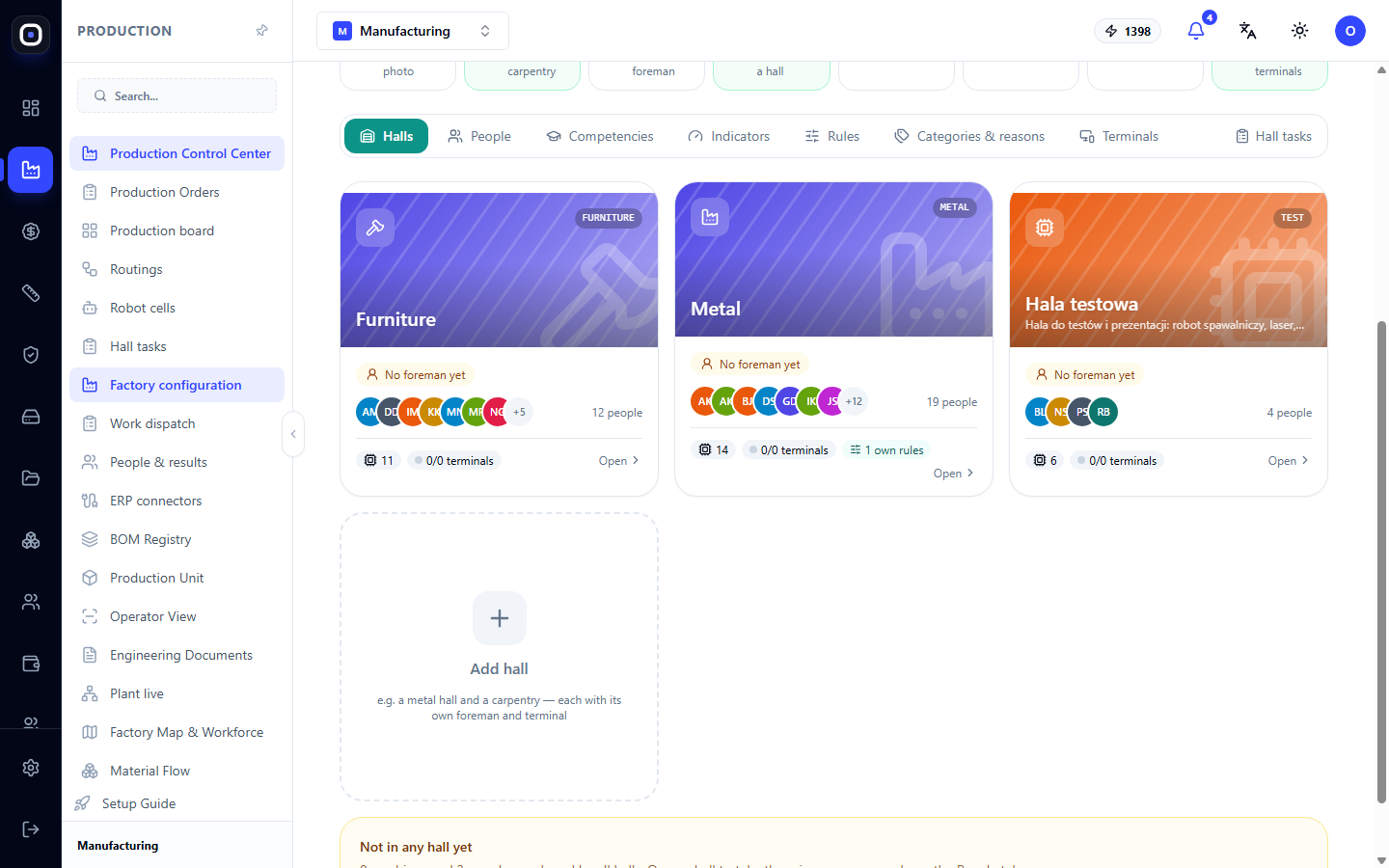
Each hall is a card. It shows:
- a photo or drawing and name;
- foremen, or the text "No foreman yet";
- circles with people's initials and their count;
- number of machines;
- terminals in "online/total" format;
- a "custom rules: N" mark if the hall operates under different rules than the rest of the factory.
The Open button shows a hall editor on the side. In it, you set the photo, name, factory, what is done in the hall (icon), color, as well as people, machines, and terminals.
The Add hall card creates a new one.
Below the cards is the "Not in halls yet" row. It shows how many machines and people are still common to all halls. Open a hall to add them to it, or move people on the "People" tab.
Important: As long as there are no halls in the factory, there are no restrictions, and everyone sees everything. Distribution by halls begins to apply with the first hall created.
"People" tab
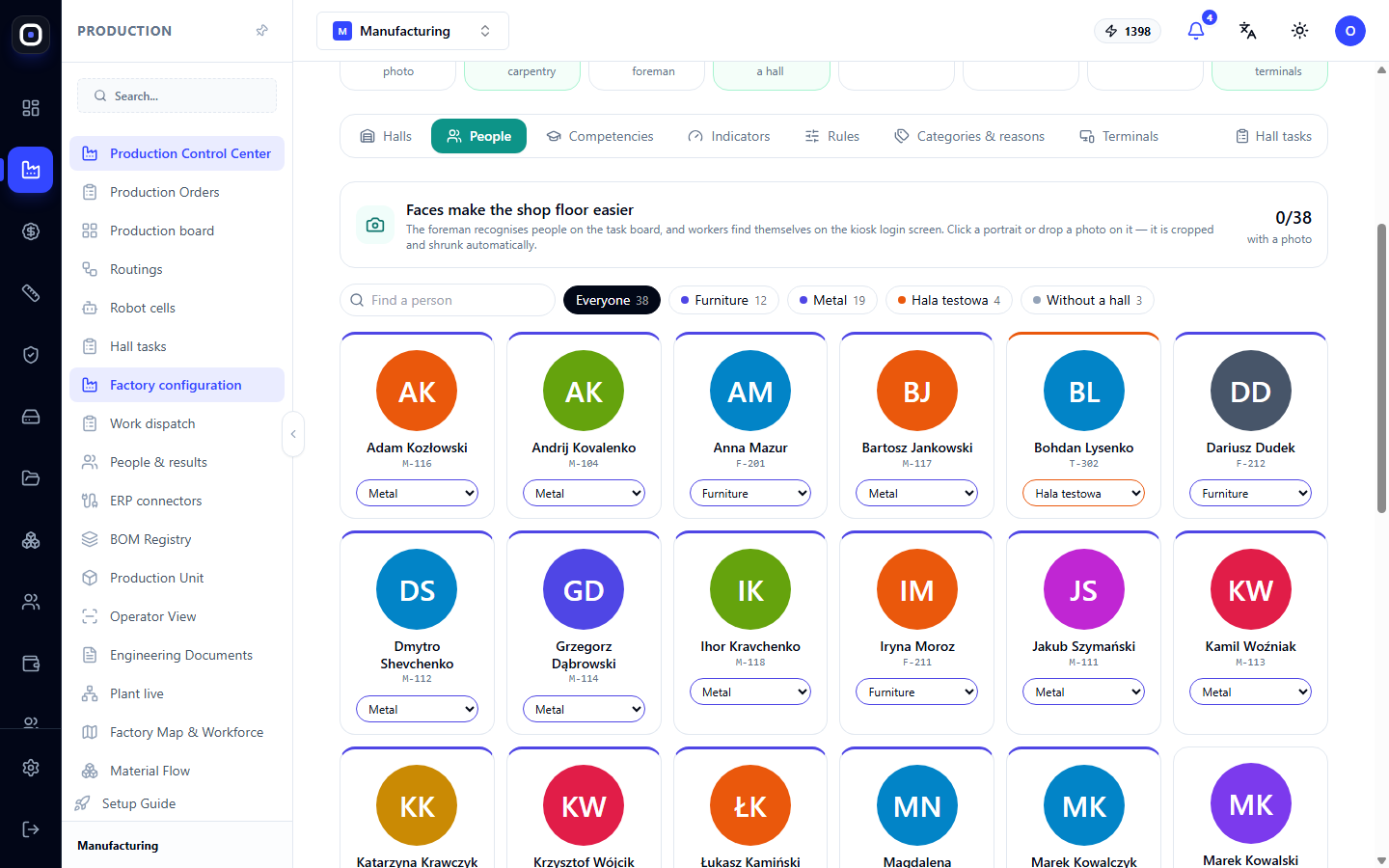
Here are portraits of all employees. At the top is the "It's easier with faces in the shop" block with a counter showing how many photos have been added: the foreman recognizes people on the task board, and the employee finds themselves on the kiosk login screen.
What you can do:
- add a photo — click on a portrait or drag an image onto it. The system will crop and resize it automatically;
- find a person using the search field;
- filter by hall using the buttons above the portraits; a separate button shows people without a hall;
- move a person to another hall on their card. You can select several and move them together.
"Competencies" tab
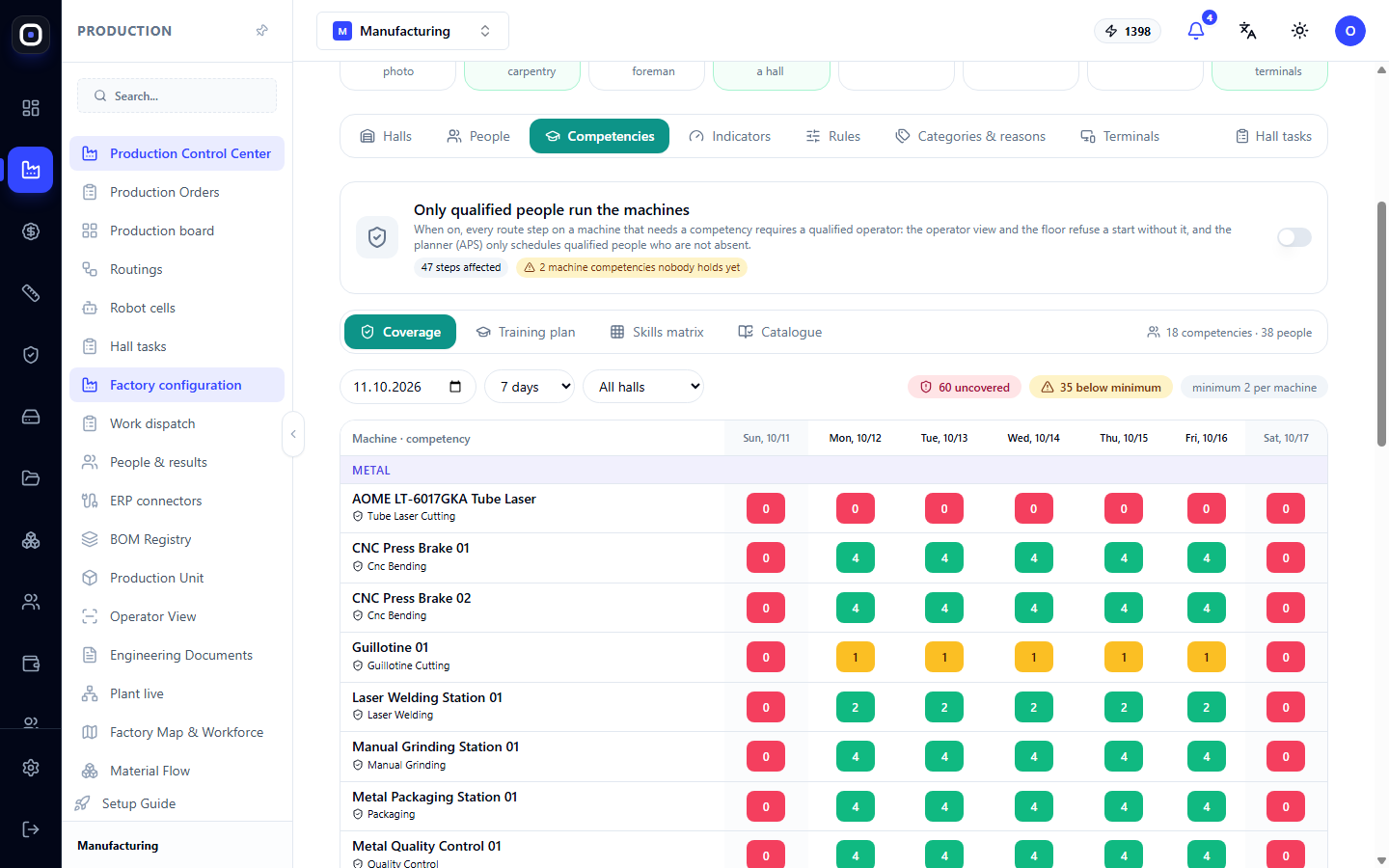
Competency answers the question "who knows what." At the top, there is a toggle "Only qualified people work on machines". When it is enabled, a route step on a machine requiring a competency will only be assigned to a person with that competency, and automatic planning will only assign qualified and present individuals.
Below are four subsections:
- Coverage — for the selected date and period, shows if there are enough qualified people for each machine. Counters on the right count uncovered cases and those where people are below the minimum;
- Training plan — who and what to teach to close gaps;
- Skills matrix — a "people × competencies" table;
- Catalog — a list of the competencies themselves.
"Metrics" tab
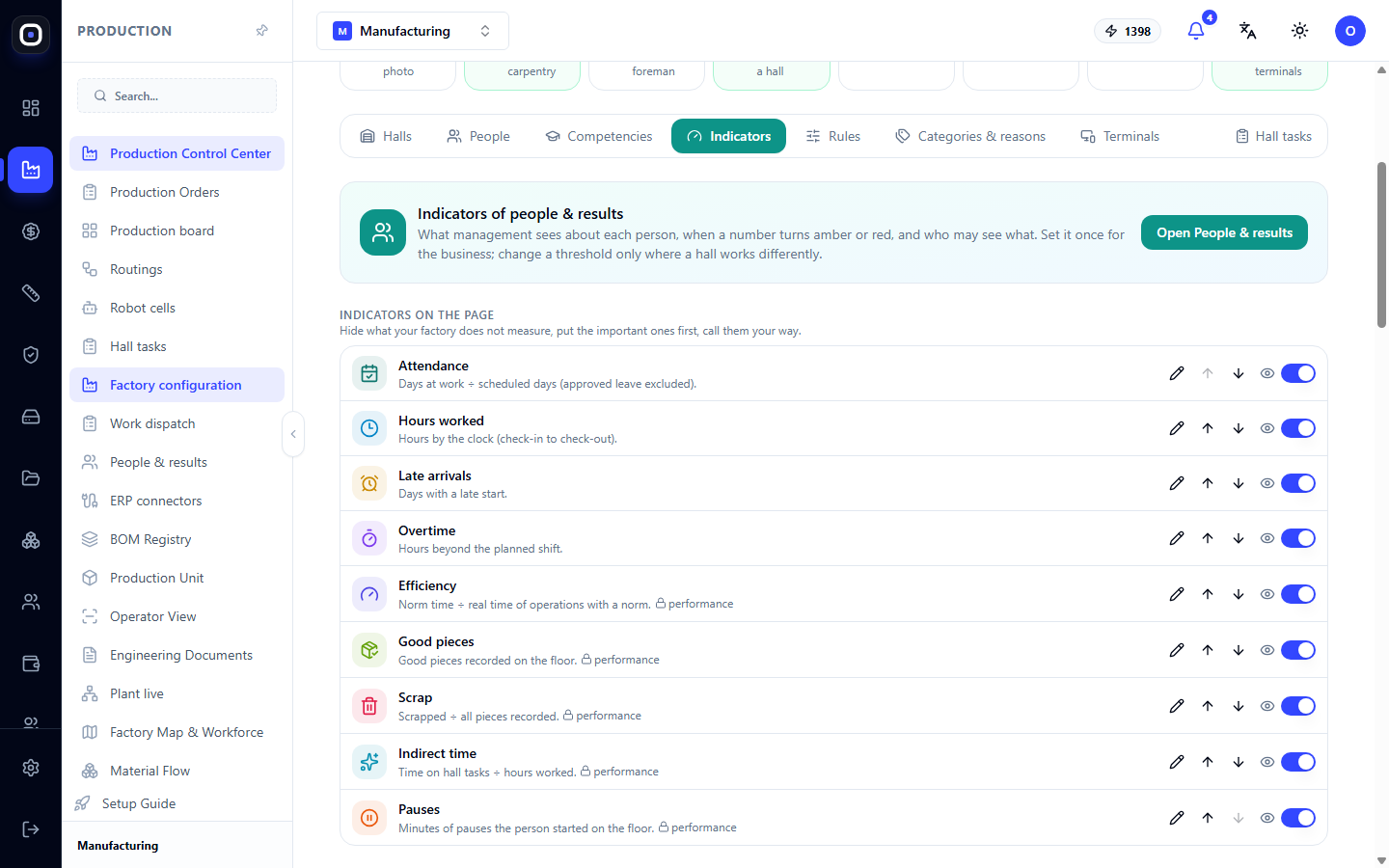
Here you configure the "People and Results" page. The Open "People and Results" button leads to it.
- Metrics on the page — which numbers to display. Each metric can be renamed, hidden, and moved up or down with arrows.
- Thresholds — when a number turns yellow or red. Zero disables the signal.
- Who sees what — whether foremen see productivity and notes, whether to show colleagues' names in comparison, whether to record who opened a profile.
- Weekly digest — day, hour, and channels through which the owner and administrators receive a weekly summary.
"Rules" tab
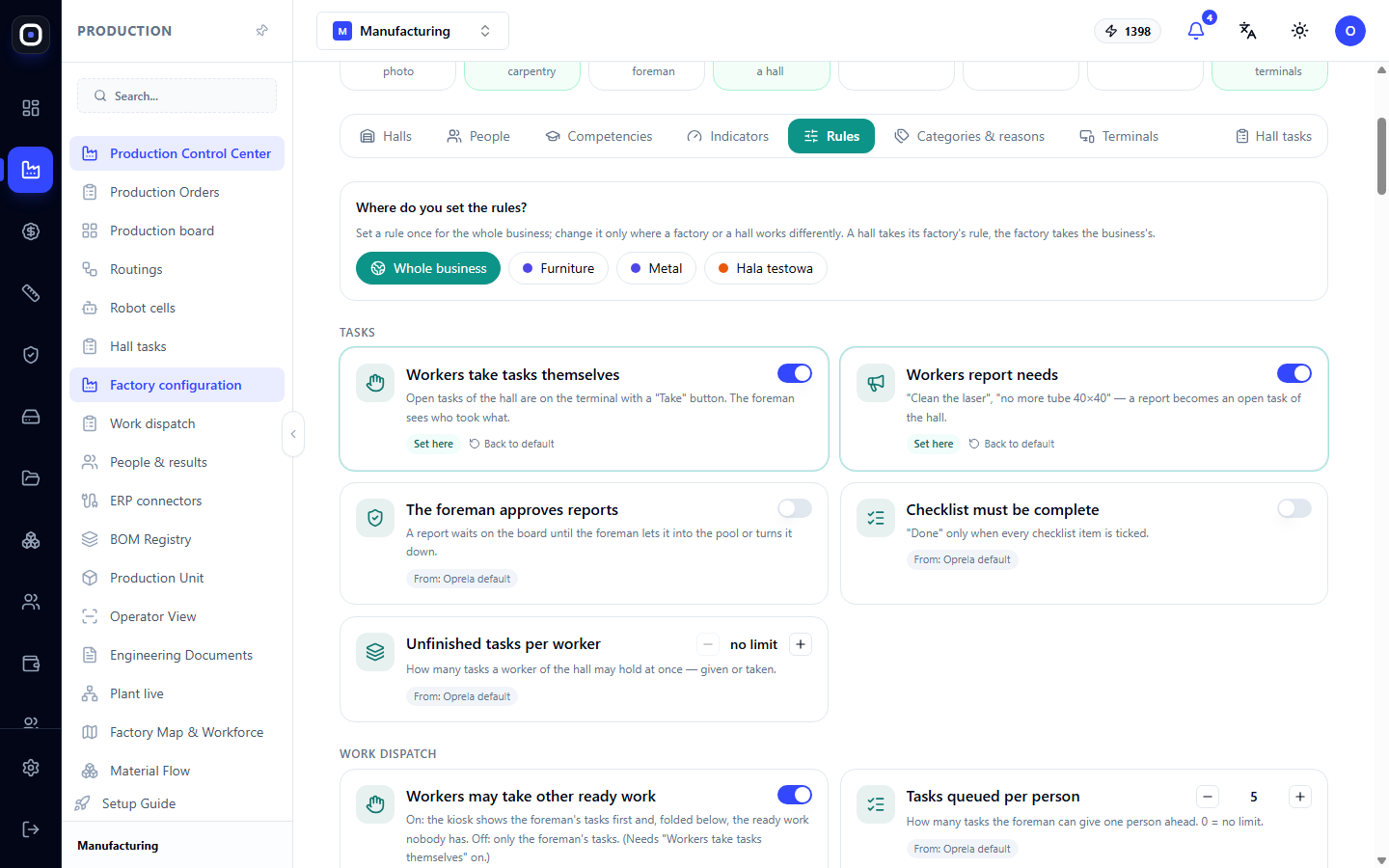
This is the most important tab on the page, and it contains one idea worth understanding.
A rule is set once and inherited
At the top is the question "Where do you set the rules?" and buttons: Entire business and hall names. A rule is set once for the entire business. It is changed only where the factory or hall truly operates differently.
A hall inherits its factory's rule, and a factory inherits the business's rule. On each rule card, you can see where the value came from: "Entire business", "Factory...", or "Set here". The Inherit button removes the local change and reverts to the value from above.
Example. For the entire business, "Employees take tasks themselves" is enabled. In the metal hall, the foreman wants to assign work himself. You select the "Metal" hall, disable the rule, and it becomes "Set here." The other halls continue to operate as before.
Rule groups
Tasks:
- employees take tasks themselves;
- employees report needs;
- foreman approves messages;
- checklist is mandatory;
- maximum unfinished tasks per person;
- work between halls;
- time on task is considered working time;
- tasks can be taken during an operation.
Work distribution:
- employee can take another ready task;
- tasks in queue per person;
- from what percentage an operation is considered longer than usual;
- for how many days the usual time is calculated and how many executions are needed for this.
There are also groups Notifications, Delays & Norms, and Operation completion. In the last one, there is a "Photo before completion" rule: it prevents an operation from being completed until the employee adds a photo.
"Categories & Reasons" tab
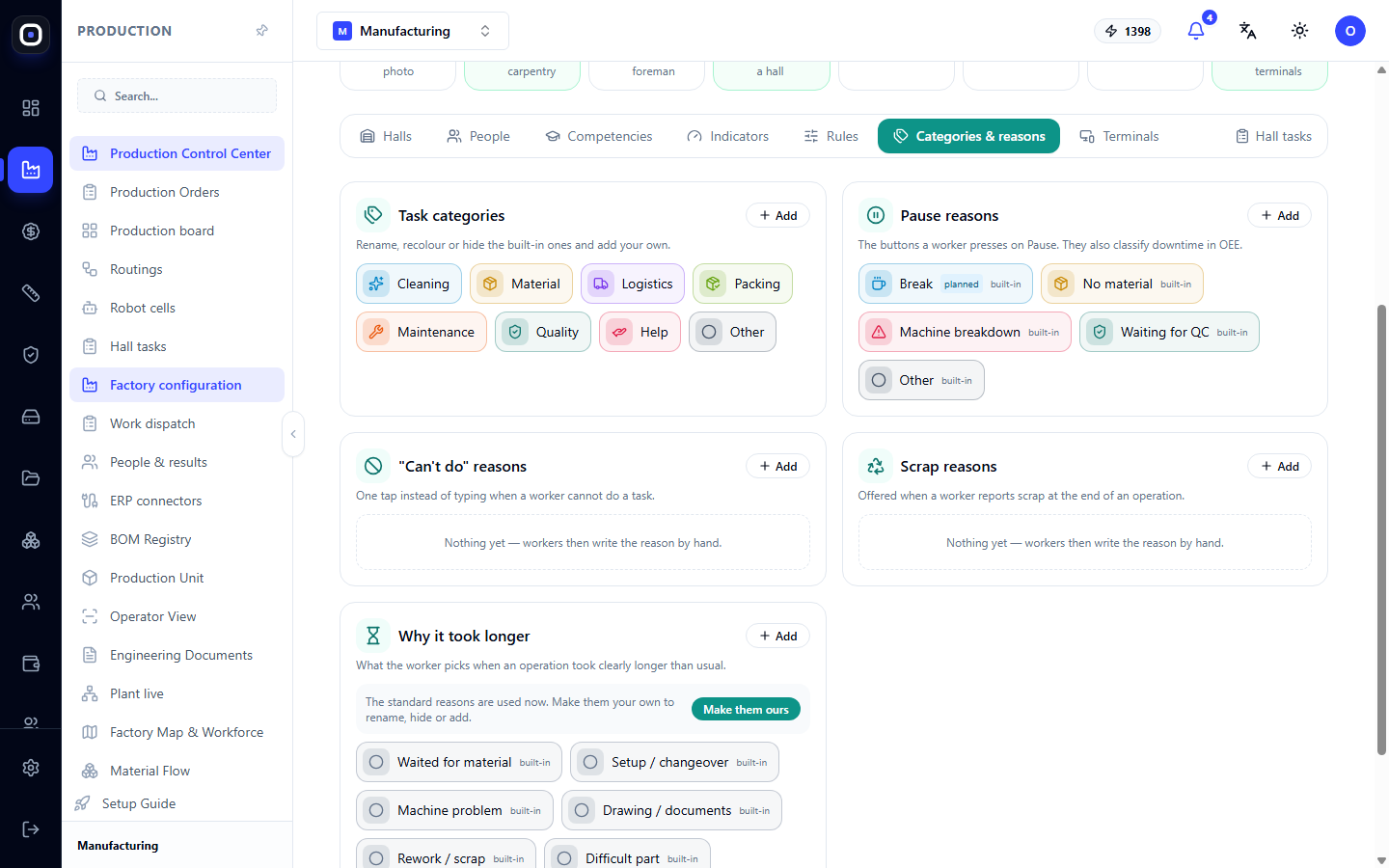
This is where your factory's directories are stored. Each block has an Add button.
- Task categories — Cleaning, Material, Logistics, Packaging, Maintenance, Quality, Help, Other. Built-in ones can be renamed, recolored, or hidden. For custom ones, you specify the color, icon, and whether the time is counted as working time.
- Pause reasons — buttons the employee sees when pressing "Pause": break, no material, machine breakdown, waiting for control. They also classify downtime: planned or unplanned.
- "Cannot" reasons — one tap instead of typing when an employee cannot complete a task.
- Scrap reasons — offered when an employee indicates scrap during operation completion.
- Why longer than usual — what the employee chooses when an operation took significantly longer. Until the factory has its own list, standard reasons apply. The Make your own button allows you to rename, hide, or supplement them.
Each entry can be limited to one factory or one hall.
"Terminals" tab
Here you can see the terminals for each hall. If there is no terminal, a prompt to create one or add an existing one will appear under the hall name.
On this tab, you can also:
- find a QR code to install the Oprela Floor app on an Android phone, and download and print buttons;
- select the service account for the shop floor, on behalf of which terminals perform actions in the system;
- register new kiosks.
Cards, QR codes, PIN codes, and phones are issued not here, but in the specific employee's card.
Typical first setup order
- Open Production → Factory Configuration.
- Click Describe factory and fill in the name and address.
- Add halls and assign a foreman to each.
- Distribute machines and people among the halls.
- Add employee photos.
- On the Rules tab, set rules for the entire business.
- Change rules for individual halls only where they operate differently.
- On the Terminals tab, select the service account and register kiosks.
- Check the setup ring: it should show 100%.
Frequently Asked Questions
The foreman sees people and tasks from another hall. Why?
Most likely, they are not assigned to the hall as a foreman. Open the hall card and add them. Owners and administrators always see all halls.
I changed a rule, but it didn't change in one hall.
This hall has the rule "Set here", meaning it's locally overridden. Select the hall on the Rules tab and click Inherit.
The employee is not on the kiosk login list.
A hall kiosk shows employees of that hall and those without a hall. Check which hall the person belongs to and which terminal is assigned to.
The counter shows "0/1 terminals online." Is this an error?
No. The terminal is registered, but it is currently offline: turned off or without network.