Production and Personnel Map: Where every machine stands and who works on it
A factory floor plan with workstations, equipment, and zones. It shows which spots are occupied, which are free, and who is working where. The map can be automatically generated from the factory configuration.
The Production and Personnel Map shows the factory as you see it from above: halls, workstations, equipment. For each spot, you can see whether it's occupied or free, and who is working there.
A table answers "how many," while the map answers "where." It helps a new foreman quickly get oriented and allows a manager to see which part of the factory has all the work concentrated.
Where to find the page
In the left-hand menu, open Production → Production and Personnel Map. The page URL ends with …/erp/production/factory-map.
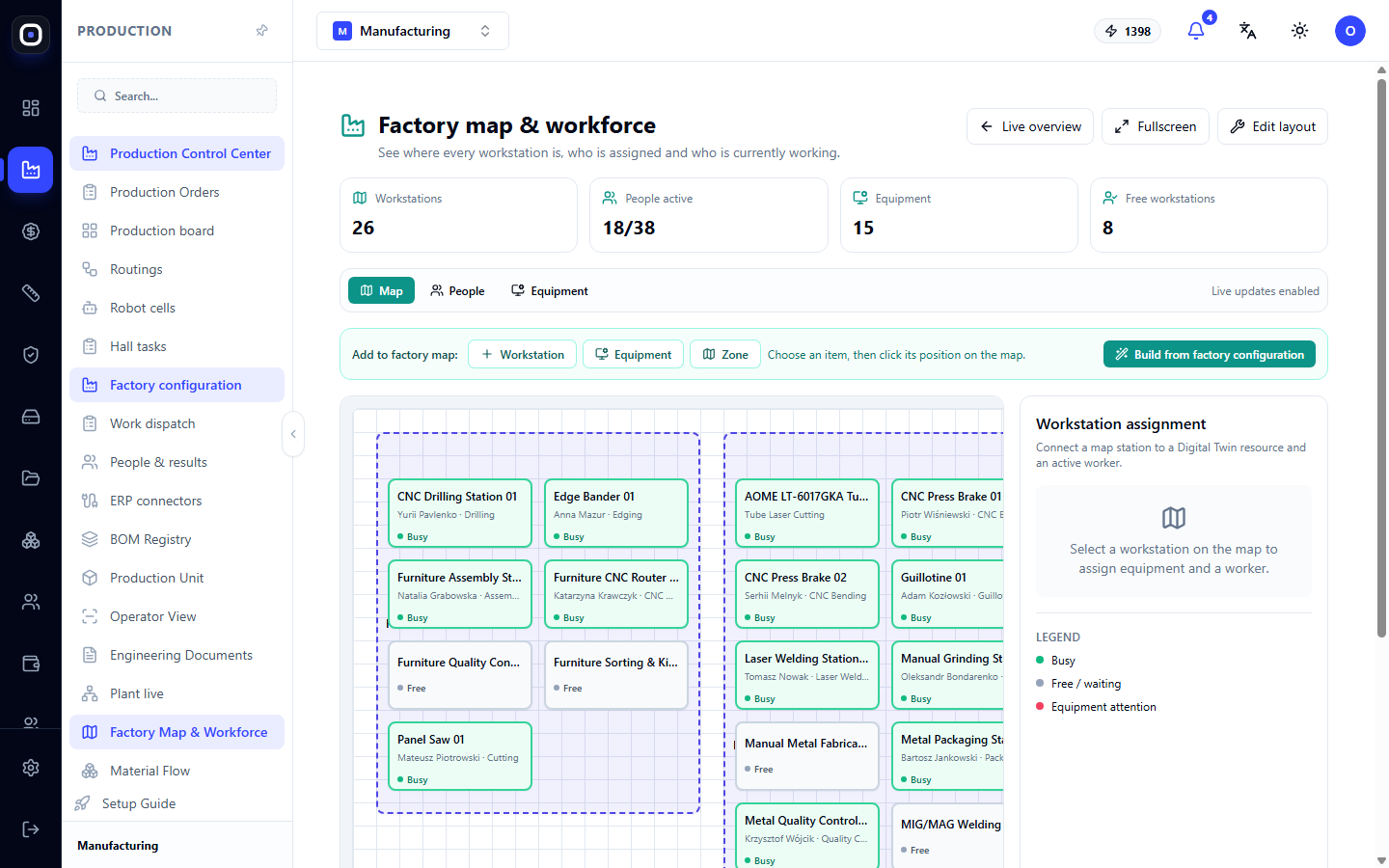
Most labels on this page are currently displayed in English. In this article, they are presented as you see them on the screen.
Buttons in the top right corner
- Live overview opens the "Plant Live" page with the same data in list form.
- Fullscreen expands the map to full screen. Convenient for a large monitor in the workshop or office.
- Edit layout enables layout editing. More on this below.
Four counters
- Workstations — how many workstations are on the map.
- People active — how many people are currently working out of the total, e.g., 18/38.
- Equipment — how many units of equipment.
- Free workstations — how many workstations are currently free.
The last number is useful when you need to urgently find a place to perform unscheduled work.
Three views
The toggle switch below the counters: Map, People, Equipment. To its right, the text Live updates enabled confirms that the data updates automatically.
Map
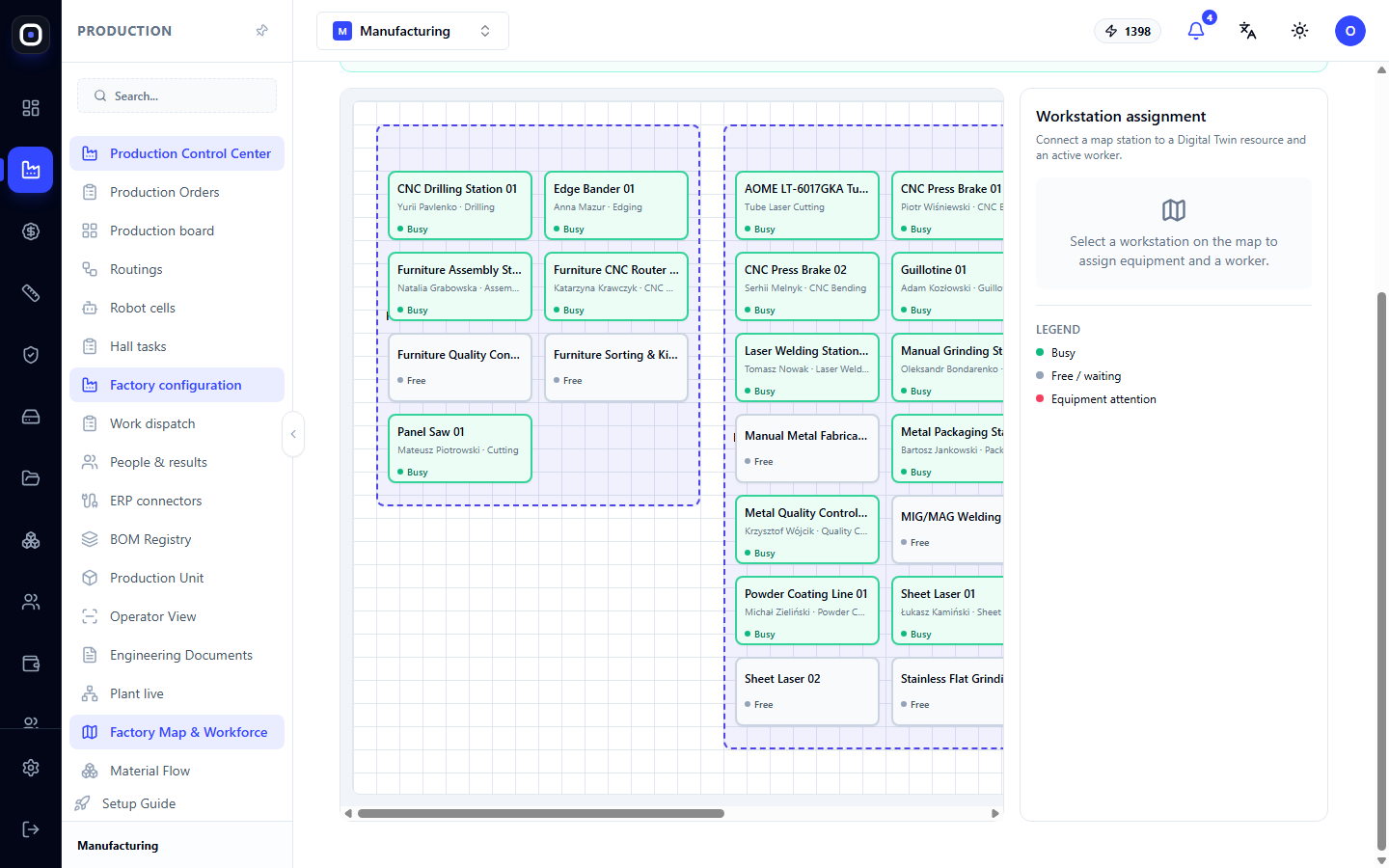
Halls are shown as colored areas with a dashed border. Workstation tiles are arranged inside. On each tile, you can see:
- The workstation name, e.g., "CNC Press Brake 01";
- Who is working on it and what operation they are performing;
- Status: Busy or Free.
To the right of the map, there is a legend with color meanings and a Workstation assignment panel. Click on a workstation on the map, and in this panel, you can assign equipment and an employee to it.
People
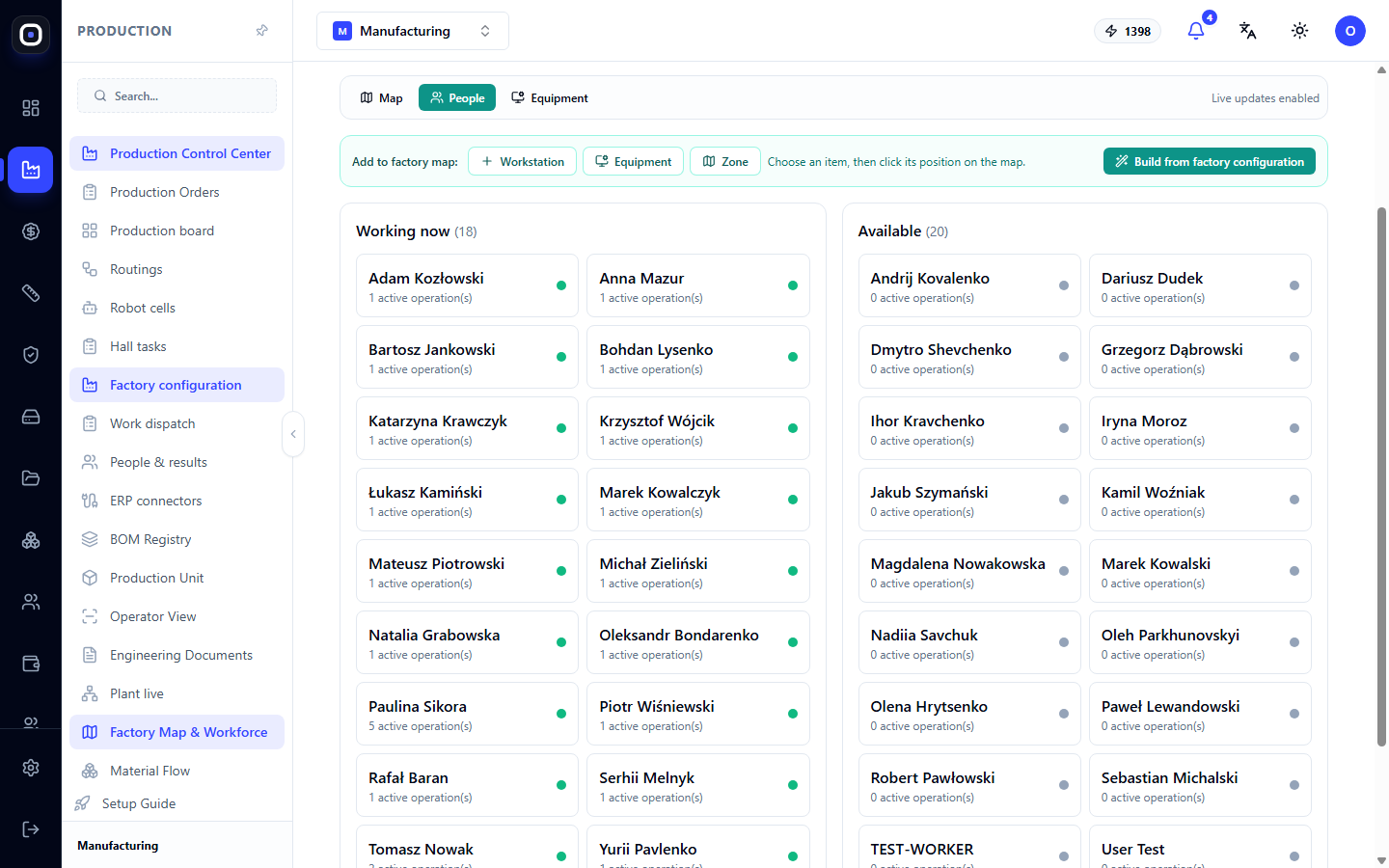
The same factory, but from the perspective of people: who is at which workstation, who is currently working, and who is free.
Equipment
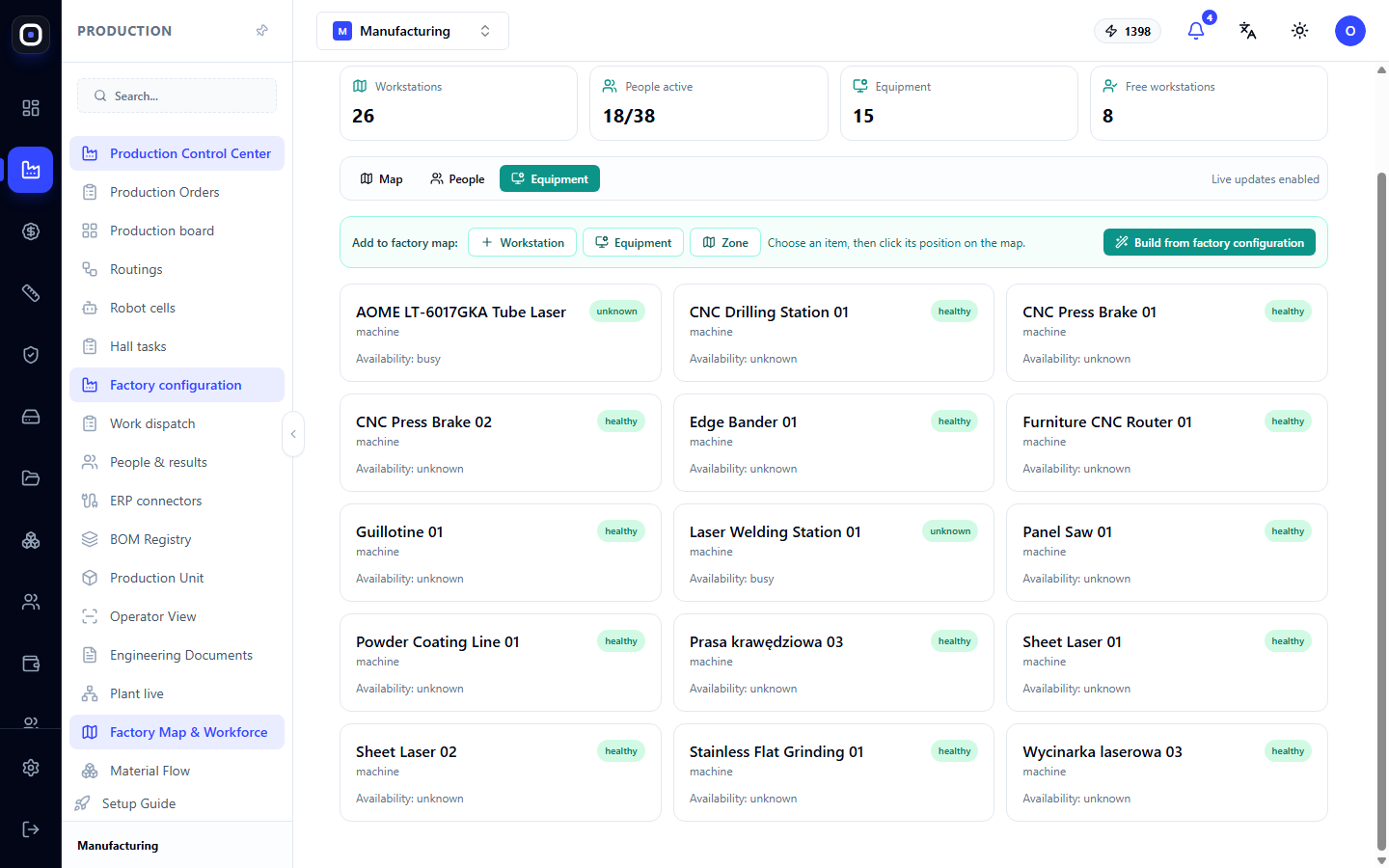
A list of equipment linked to workstations.
How to create a map
There are two ways.
Automatically
The Build from factory configuration button creates the map automatically. It takes the halls and machines you have already described in the factory configuration and arranges them into areas.
This is the fastest way to get a working map. The layout will be schematic, and you can then manually adjust it.
Manually
The Add to factory map line offers three types of elements:
- Workstation
- Equipment
- Zone, e.g., a raw material warehouse or a passage.
Select the type, then click on the map where the element should be placed. The hint nearby says: Choose an item, then click its position on the map.
Editing the layout
The Edit layout button enables a mode where tiles can be moved. After making changes, finish editing with the button that appears in its place.
Accuracy to the centimeter is not needed here. The purpose of the map is for a person to recognize their workshop on it: the laser to the left of the entrance, bending in the middle, welding at the end.
Why this is useful in practice
- Find a free spot. Urgent work, but everyone is busy? The counter and map will show where it's free.
- Spot an imbalance. If one hall is all "Busy" and the adjacent one is half "Free," perhaps some people should be moved.
- Onboard a new person. It's easier to show a new employee the map than to explain verbally where everything is.
- Large screen in the workshop. In Fullscreen mode, the map acts as a display board.
Typical workflow
- Describe the halls and machines in the factory configuration.
- Open Production → Production and Personnel Map.
- Click Build from factory configuration.
- Enable Edit layout and arrange the tiles approximately as the equipment is actually located.
- Add zones with the Zone button if needed.
- Finish editing.
- Subsequently, open the map to see workstation occupancy.
Frequently Asked Questions
The map is empty
Click Build from factory configuration. If it's still empty after that, there are no halls and machines yet in the factory configuration.
A machine is in the configuration, but not on the map
The map does not update its layout automatically after every change. Rebuild it or add the workstation manually using the Workstation button.
A workstation is shown as "Free" even though someone is working there
The operator has not started the operation in the system. The map only shows recorded work.
How does the map differ from the "Plant Live" page?
The data is the same, the presentation is different. The map shows the layout, while "Plant Live" shows lists by hall with details about each machine and person.