Customer Offers: Price Page Your Customer Opens via Link
How to create a quote from a cost estimate, publish it with a private link, see when the customer opens it, and get acceptance. And what the customer sees on their page.
Calculating the price is half the battle. The other half is presenting it to the customer in a way that they understand what they're buying, can compare options, and say "yes" with a single click.
The "Customer Offers" section turns a calculation into a ready-made page for the customer. The section heading describes the entire process: estimate the price from a cost estimate, publish a branded page with a private link, see when the customer opens it, and get acceptance.
It also includes a promise that builds trust in the tool: the customer never sees the cost price, margin, or supplier.
Where to find it
Open Costing Studio and click the Offers section in the section bar.
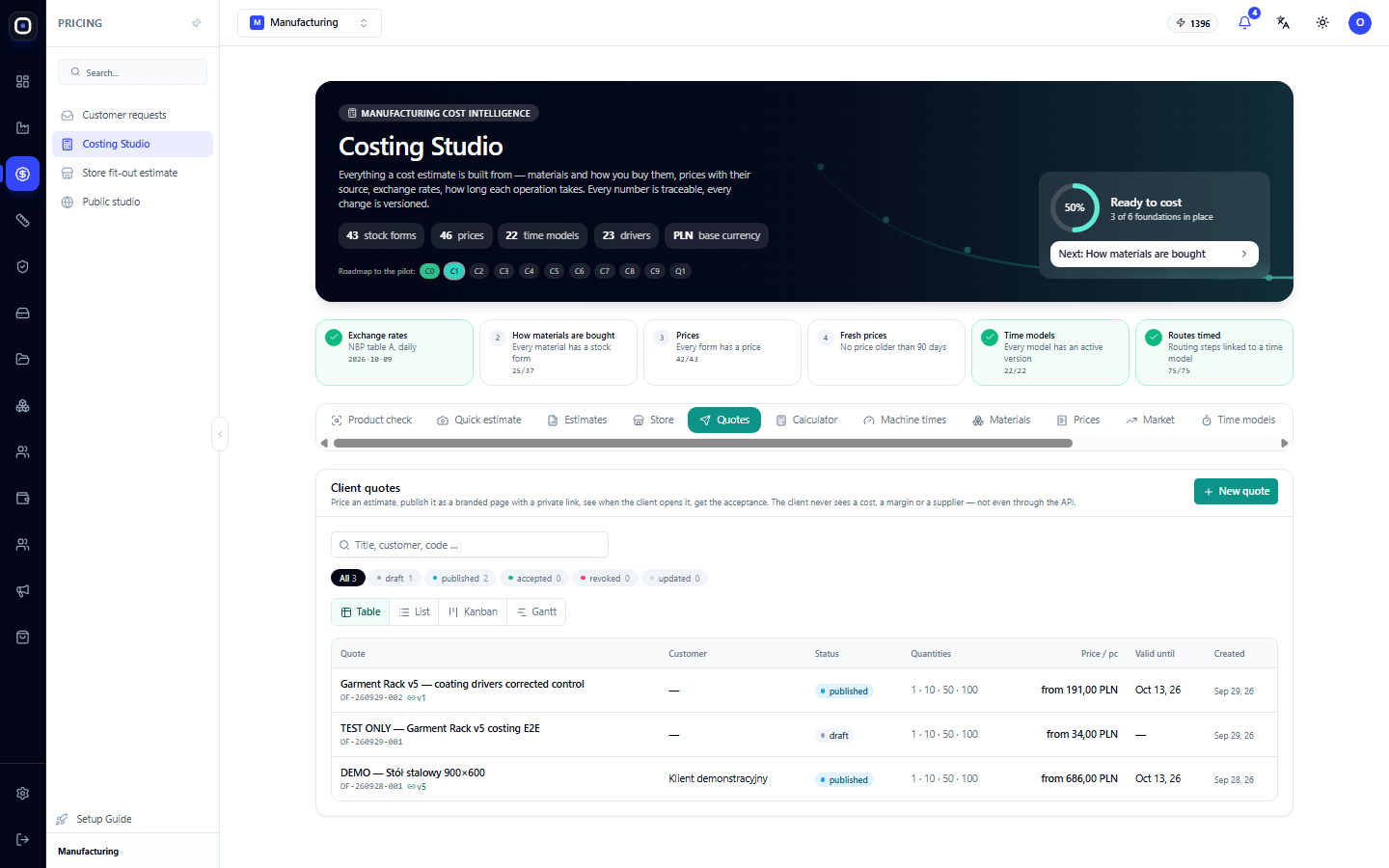
List of Offers
Status Counters
At the top, there's a row of buttons with statuses and the number of offers in each. Clicking a status filters to show only offers with that status.
- Draft — the offer is being prepared, the customer doesn't see it;
- Published — the link is active, the customer can open the page;
- Accepted — the customer has agreed;
- Withdrawn — you have removed the offer, the link no longer works;
- Updated — a new version has been released in its place.
Views
The toggle offers four views: Table, List, Kanban, Gantt.
Table Columns
- Offer — name, number (e.g., OF-260928-001), and version.
- Customer — to whom it is addressed.
- Status.
- Quantities — for which batches the price is calculated, e.g., "1 · 10 · 50 · 100".
- Price per unit — the lowest price across all quantities, marked with "from".
- Valid until — the date after which the offer expires.
- Created.
How to Create an Offer
- Click New Offer.
- Select the cost estimate from which it is made.
- Set the price. The system suggests it based on the cost price and your markup, but you decide the final number.
- Specify the quantities for which to show the price. The customer will see how the price per unit decreases with increasing batch size.
- Add variants and options, if any.
- Set the validity period and terms.
The offer is saved as a draft.
Variants and Options
A variant is a different execution of the same product: economy from a simpler material, standard, premium. The customer chooses one and can compare them side-by-side.
Options are additions to the chosen variant: painting in a different color, wheels, installation. Some options are mutually exclusive (choose one of several), some are freely added. An option can be priced per unit or per entire order.
Variants work better than a single price. A customer who finds it expensive doesn't leave but chooses a simpler variant.
Publishing
A draft is published. After this, a private link appears, which you send to the customer via email or messenger.
- The link is impossible to guess: it contains a long random code.
- The page can be additionally protected with a PIN code. The customer then enters the PIN you provided separately. After several failed attempts, access is blocked for 15 minutes.
A published offer is fixed. If something needs to be changed, a new version is released. A customer who opens the old link will see a message that the offer has been updated and a request to use the new one.
What the Customer Sees
The customer opens the link in their browser. They don't need to register or install anything.
At the top — your logo, product name, for whom the offer was prepared, and until what date it is valid, with a counter of remaining days.
Variant selection. If there are several variants, the customer chooses one. A comparison button shows them side-by-side.
Quantity selection. The customer clicks the desired quantity and immediately sees the price per unit, the total amount, and the production time.
Options and additions. What can be chosen or added, with prices.
Specification. A list of what the product consists of. A long list is collapsed.
Terms. Payment, delivery, warranty.
Assembly instructions, if available.
The customer sees the price and terms. They do not see what the price is composed of: neither the cost price, nor the margin, nor the names of suppliers.
Page Language
Buttons and labels on the page are displayed in the customer's language. The text of the offer itself remains in the language you wrote it in, and the page warns about this.
A print button allows the customer to save the offer as a PDF.
Questions and Change Requests
On the page, there is a button to ask a question or request a change. The customer writes, for example: "Can the tabletop be black instead of oak?", and optionally leaves their name and email for a response.
The question goes into your customer request. Your answer appears on the same page in the conversation block, so all correspondence regarding the offer is gathered in one place.
If a change affects the price, you release a new version of the offer.
Acceptance
To accept an offer, the customer:
- selects a variant, quantity, and options;
- enters their name and company;
- provides an email for confirmation;
- optionally adds a comment;
- checks a box indicating acceptance of the offer with the quantity, price, and terms shown on the page;
- clicks the acceptance button.
The page honestly explains to the customer that this is an acceptance of a commercial offer, not an electronic signature. That is, it is a clearly recorded intention, after which you contact them to process the order.
After acceptance, the customer sees a thank you, and your offer changes to "accepted" status. It records exactly what the customer chose.
Tracking
The system records when the customer opened the page and how many times. This is visible in customer requests in the "Offer opened" column.
- Opened several times and silent — thinking or showing colleagues. Time to call.
- Not opened — perhaps the email didn't arrive.
If the Offer is Outdated
After the "Valid until" date, the customer sees a message that the offer has expired and a request to ask for an updated one. It can no longer be accepted.
This protects you from a situation where a customer accepts a price calculated with old metal prices half a year later.
Withdrawal
A published offer can be withdrawn. The link immediately stops working. Use this if you notice an error or circumstances have changed.
Typical Workflow
- Create a cost estimate.
- Check it in Manufacturing Advisor and confirm prices.
- In the Offers section, click New Offer.
- Set the price, quantities, variants, options, and validity period.
- Publish and send the link to the customer.
- Monitor if the customer has opened the page.
- Answer questions.
- After acceptance, transfer the request to production.
Frequently Asked Questions
Will the customer see my cost price?
No. The customer's page only shows the price and terms. Cost price, margin, and suppliers are not transferred there.
The customer says the link doesn't work
Check the status. If the offer has been withdrawn, updated, or expired, the page shows the corresponding message.
The customer forgot the PIN
Provide them with the PIN again. If they entered it incorrectly several times, access is blocked for 15 minutes.
I noticed an error in a published offer
A published offer cannot be edited. Release a new version: the old one will show the customer that an updated one is available.
Is acceptance a legal signature?
No, and the page explicitly states this. This is an acceptance of a commercial offer. Draft a contract or order in your usual way.
The customer accepted, what next?
Contact them for confirmation and transfer the request to production: a draft production order will be created from it.