Production Units: Where Each Part Is and Why It's There
A list of all parts, assemblies, and products in production, and a unit card: status, barcode, current and next operation, blocking reasons, and full history.
A production unit is a specific item being made in the workshop: an individual part, a welded assembly, or a finished product. Each has its own code, status, and history.
An order states "what needs to be made." Units show "where each part of it is now." If a client asks why their order is delayed, the answer almost always lies with one specific unit.
Where to Find the Page
In the left-hand menu, open Production → Production Unit. The page address ends with …/erp/production/units.
The card for an individual unit can also be opened from an expanded order on the production orders page.
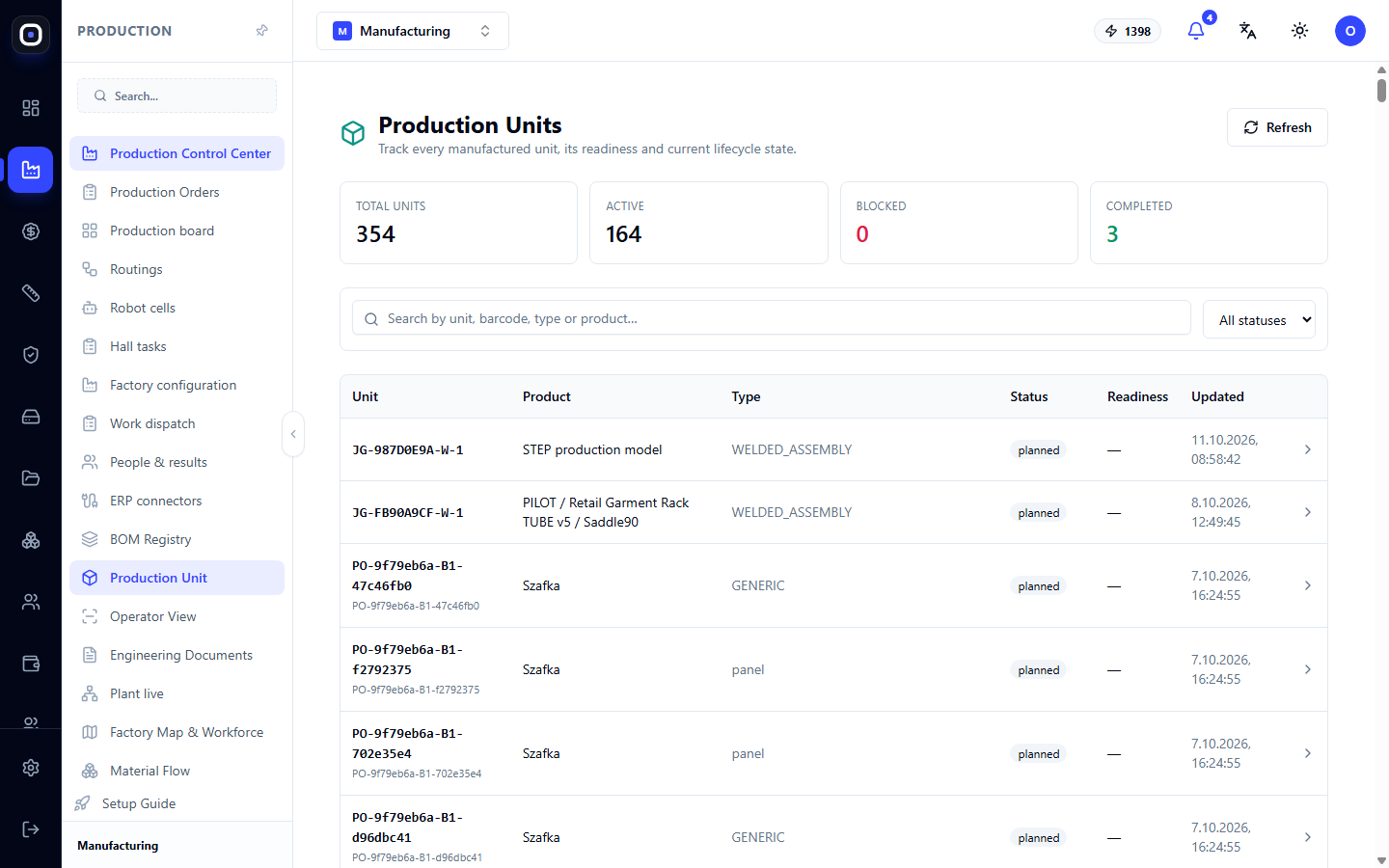
Unit List
Four Counters
- Total units — how many exist in total.
- Active — how many are currently in motion.
- Blocked — how many are stalled and awaiting intervention.
- Completed — how many are fully finished.
The number of blocked units should be checked daily. Even one blocked unit can hold up an entire order.
Search and Filter
The "Search by unit, barcode, type, or product" field searches by any of the listed criteria. The fastest way to find a part is to scan its label directly into this field.
The Status filter list displays units in a single state.
Table Columns
- Unit — code. This is also printed on the label.
- Product — to which product it belongs.
- Type — unit type: panel, pipe, welded assembly. The type determines the route the unit will take.
- Status — what is currently happening with it.
- Readiness — whether it can be worked on further.
- Updated — when something last changed.
Four Statuses
- planned — planned. The unit has been created, but work has not yet started.
- ready — ready for work. Everything needed is available, it can be picked up.
- in_progress — in progress. Someone is currently performing an operation.
- completed — completed. All steps of the route have been finished.
A unit transitions between statuses automatically when operators start and complete operations. Statuses are not set manually.
Unit Card
Click on a row to open the card.
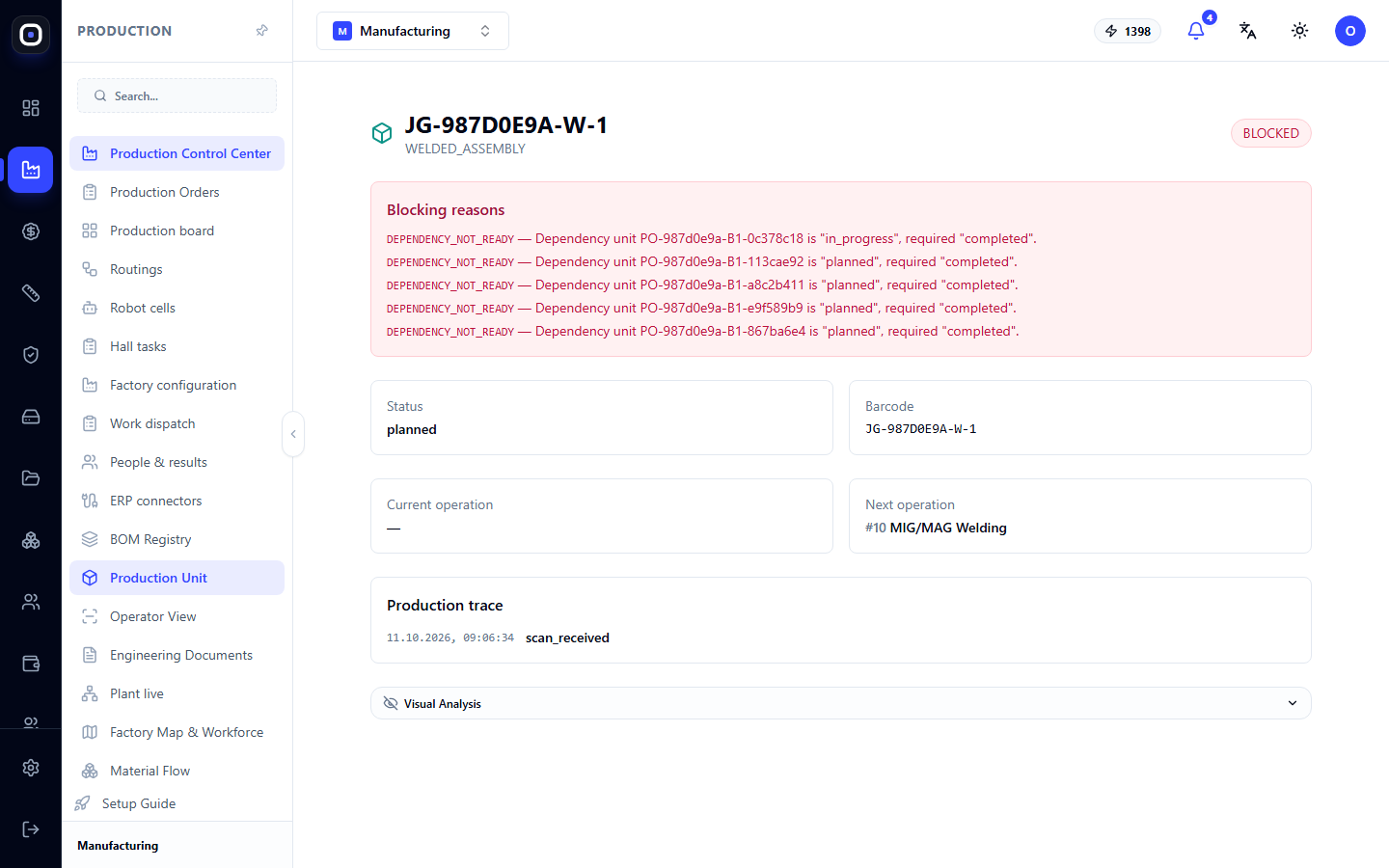
At the top are the unit code and its type. To the right is the status indicator, for example, BLOCKED, if the unit is blocked.
Blocking Reasons
If a unit is blocked, the card will display a red "Blocking Reasons" block. It lists everything preventing work from starting.
The most common reason is dependency on other units. A line like DEPENDENCY_NOT_READY means: this unit is waiting for another. Further in the line, it states which one, its current status, and what status it needs to be in.
Example: A welded assembly cannot be started until all the pipes it's made from are ready. The block will have a line for each unready pipe: one "in progress," four "planned," but all need to be "completed."
This is the answer to the question "why is it stalled." Go to the listed units and see what is holding them up.
Four Fields
- Status — the current state of the unit.
- Barcode — the code scanned by the operator.
- Current operation — what is being done right now. A dash means nothing.
- Next operation — what will be next on the route, with the step number, e.g., "#10 MIG/MAG Welding."
The "current — next" pair immediately shows where the unit is on its path.
Production Trace
The "Production Trace" block is the unit's history. Each line contains the date, time, and event: scanning, operation start, completion, quality control.
History cannot be edited. It is needed in three situations:
- complaint — a client returned a product, and it's necessary to find out who, when, and on which machine a specific part was made;
- delay investigation — it shows between which events the unit remained longest;
- audit — confirmation that all operations and checks were indeed performed.
Photo Analysis
At the bottom of the card, there is a collapsed "Photo Analysis" block. If photos were added to the unit, they are displayed here along with the results of automatic analysis.
How to Read Units with an Order
The order on the production orders page shows overall readiness. If it's yellow or red:
- Expand the order and find units with the same indicator.
- Open the card of such a unit.
- Read the blocking reasons.
- Go to the units it is waiting for.
- Repeat until you reach a unit that is stalled not due to a dependency, but due to a real reason: no material, no route, no one to do the work.
Usually, the chain is short: two or three steps.
Typical Workflow
- Open Production → Production Unit.
- Look at the Blocked counter.
- Find the desired unit by searching or scanning.
- Open the card and read the blocking reasons.
- Check the "current operation — next operation" pair.
- If necessary, review the production trace.
Frequently Asked Questions
A unit has been "planned" for a week. Why isn't it moving?
Open the card. If there is a "Blocking Reasons" block, it is waiting for other units. If there is no block, it simply hasn't been picked up for work: check work dispatch.
What does DEPENDENCY_NOT_READY mean?
This unit depends on another unit that is not yet ready. The same line indicates which one.
Can a unit's status be changed manually?
No. The status changes only through operations: start and completion at the operator's workstation. This ensures the history remains accurate.
The label is damaged, the code cannot be scanned.
Find the unit by searching for the product and type, open the card, and take the code from the "Barcode" field to print a new label.
Why does one unit's code start with PO- and another with JG-?
The code reflects the origin. Units with PO- are created from a production order. Units with JG- are welded assemblies that a foreman assembled from several parts.